
This article reviews how to link applicants together to create an applicant group, and how to manage group-applicant profiles.
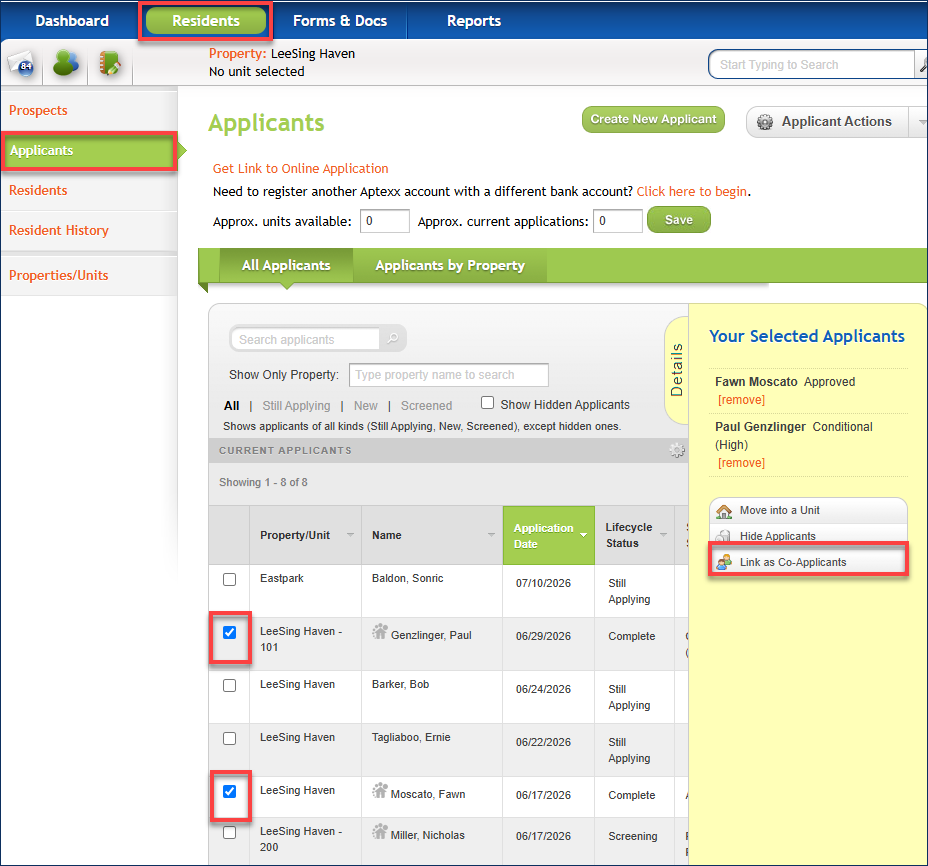
TenantTech users can manage applicants from the Applicants page. To access the Applicants page, hover over Residents and select Applicants.
When a group of applicants are applying for the same unit, you will have the option to link them together in a group.
Before linking applicants together, be sure that:
- All of the applicants selected are applying for the same unit with the intention of residing in the unit with all of the other selected applicants.
- Each of the selected applicants have completed and submitted their application. You will not be able to link an applicant that has not completed and submitted their application.
How to link applicants in TenantTech
1. From the list of applicants, select the checkbox of each applicant you wish to link together, then click on Link as Co- Applicants.
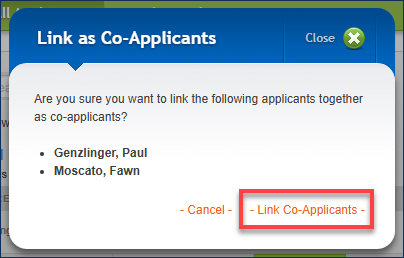
2. From the pop-up window, confirm the applicants to be linked and select, Link Co-Applicants.
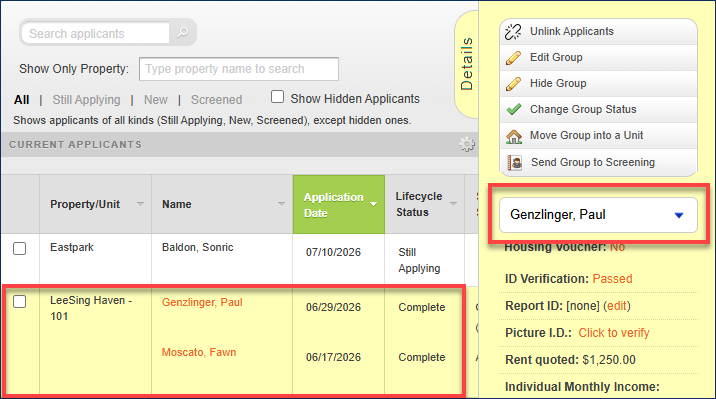
3. Once linked, the applicants will be grouped and will share the applicant details panel menu.
To view an individual applicant’s information, click on the drop-down box and select the applicable applicant’s name.
Managing the Applicant Group
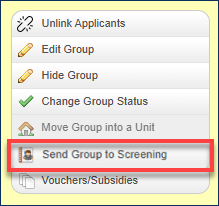
Once applicants are grouped/linked together, the applicant details panel updates, providing an additional menu with options that allow users to manage the applicant group.

*Note: Only properties utilizing the integrated screening service through Wester Reporting will see the group menu option to Send Group to Screening, allowing users to send the applicants to screening as a group rather than individually selecting each applicant to send to screening. Once the screening is complete, these users will then see a group menu option to View Group Report.
.