What is the Monthly Charges Disclosure Feature?
- This allows for an improved online application process that allows the application selections to display management company fees before submitting application for background screening/processing.
- Feature allows TenantTech users to see what was presented at the time of application in program by reviewing Application PDF.
- Company Admins will set Monthly Charges Disclosure details in Account/Property settings. Access to this area is permitted to company admins or user class with modified privileges.
- This feature will be visible to TenantTech users in Account/Property Settings. Management teams can preset the template settings before this is introduced to applicants through your Online Application.
Managing Monthly Charges Disclosure in Account/Property Settings
- Company admins can manage this new feature in Account Settings (or Property Settings if managing a multiple property account).
- The feature allows company admins to add mandatory and optional charges to the Online Application to allow the applicant to view fees prior to submitting the application for background checks.
- This new feature allows company admins to track changes made to this area of the program.
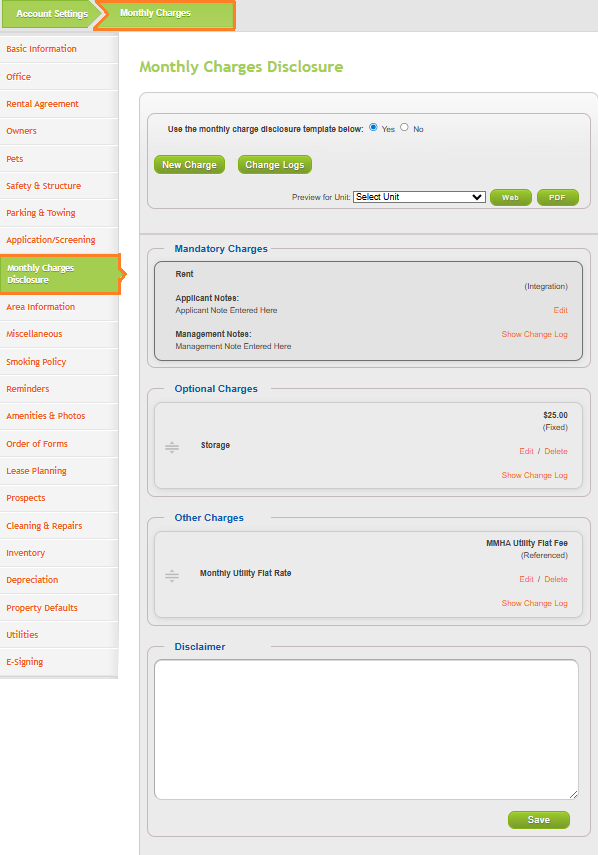
- If your property opts to use this feature, Rent will automatically be listed as a mandatory charge. This charge can not be deleted from the Mandatory Charges section. The default Rent charge will pull the Market Rent listed in TenantTech for the unit.
- If you manage a multiple property account, you are able to manage the setting in Account Settings for all properties on your account. Fees listed at an account level will impact all properties/units listed on a Multiple Property Account. If adding a property level charge list company admins should select the property they want to modify using the drop down selection.
How to Set Monthly Charges Disclosure for a Single Property in Account Settings
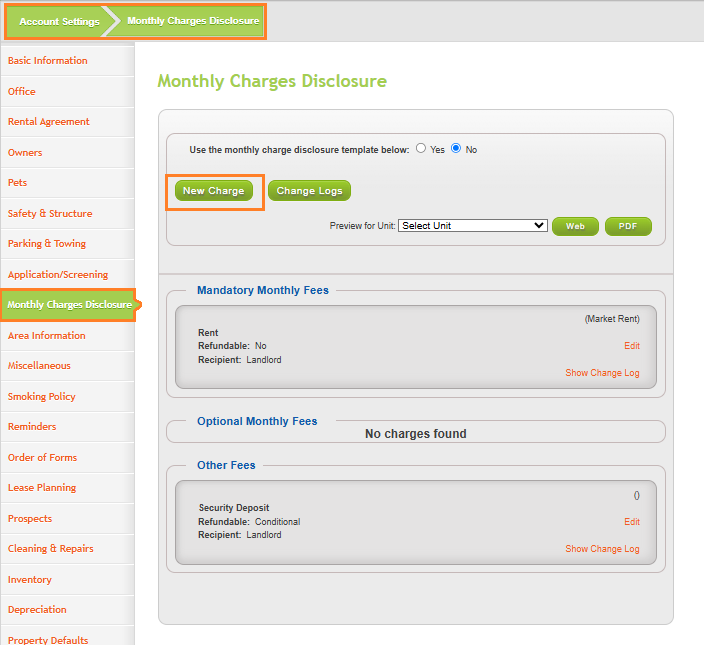
Step 1- Go to Account Settings and select Monthly Charges Disclosure-
When opting to use the feature- the system will display a Rent Charge and Security Deposit Charge. Users must modify the charges in the Mandatory Charges section. This charge can be modified but not deleted.
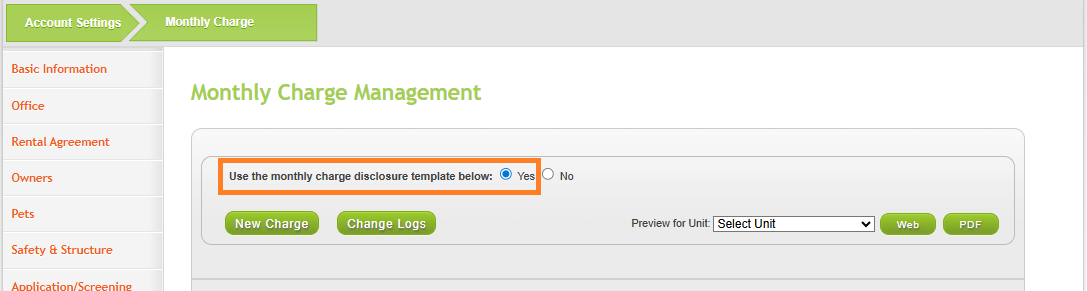
Accounts and Properties are set to No by default when the account / property is established in TenantTech.
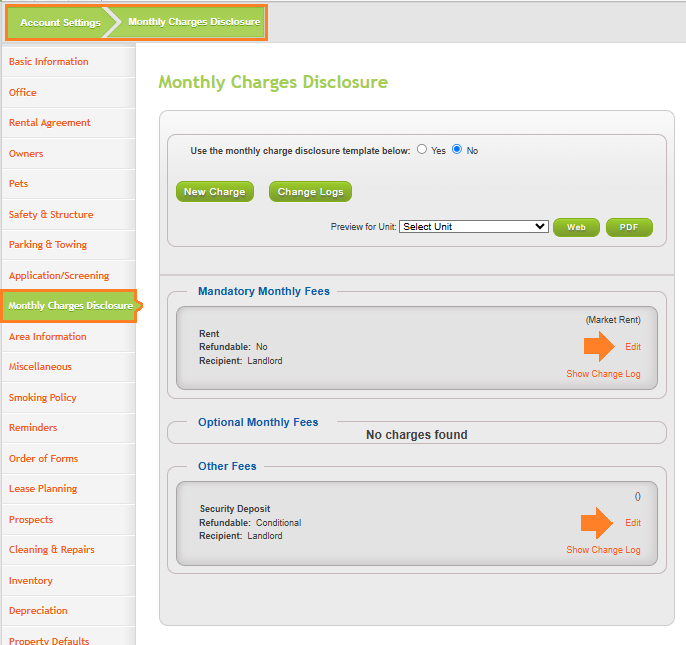
Step 2- Modify Rent and Security Deposit Charges
Users will need to modify the details for Rent and Security Deposit Charges. These fields can not be deleted or removed from the Account Setting.
Step 3- Create New Charge
Select New Charge Button to add fees that will be displayed to the applicant during the Online Application process.
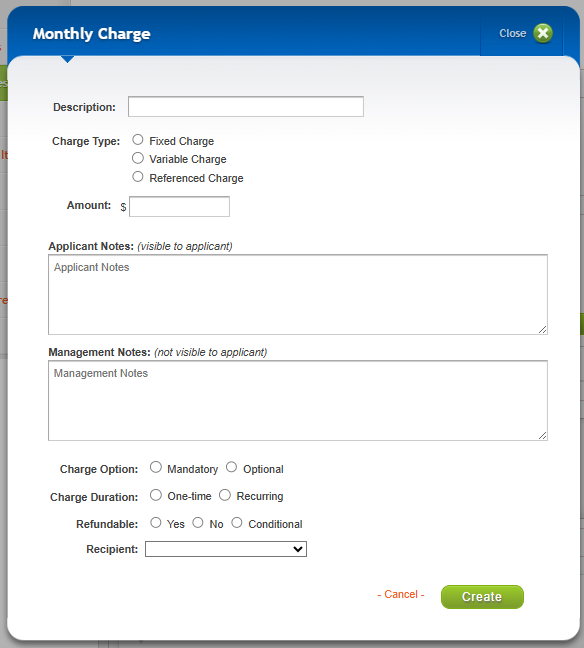
Step 4- Enter New Charge Description
Entering the following fields:
- Description
- Charge Type
- If Fixed, enter amount.
- If Variable, enter amount range.
- Amount
- Applicant Notes- this is visible to the applicant during the Online Application Process.
- Management Notes- this is not visible to the applicant during the Online Application process.
- Charge Options-
- Mandatory - required by all applicants
- Optional- not required by all applicants
- Charge Duration-
- One Time- single payment /charge paid for by the applicant.
- Reoccurring- monthly or reoccurring charges paid for by the applicant.
- Refundable-
- Yes
- No
- Conditional
- Recipient-
- Landlord
- Provider
- Other
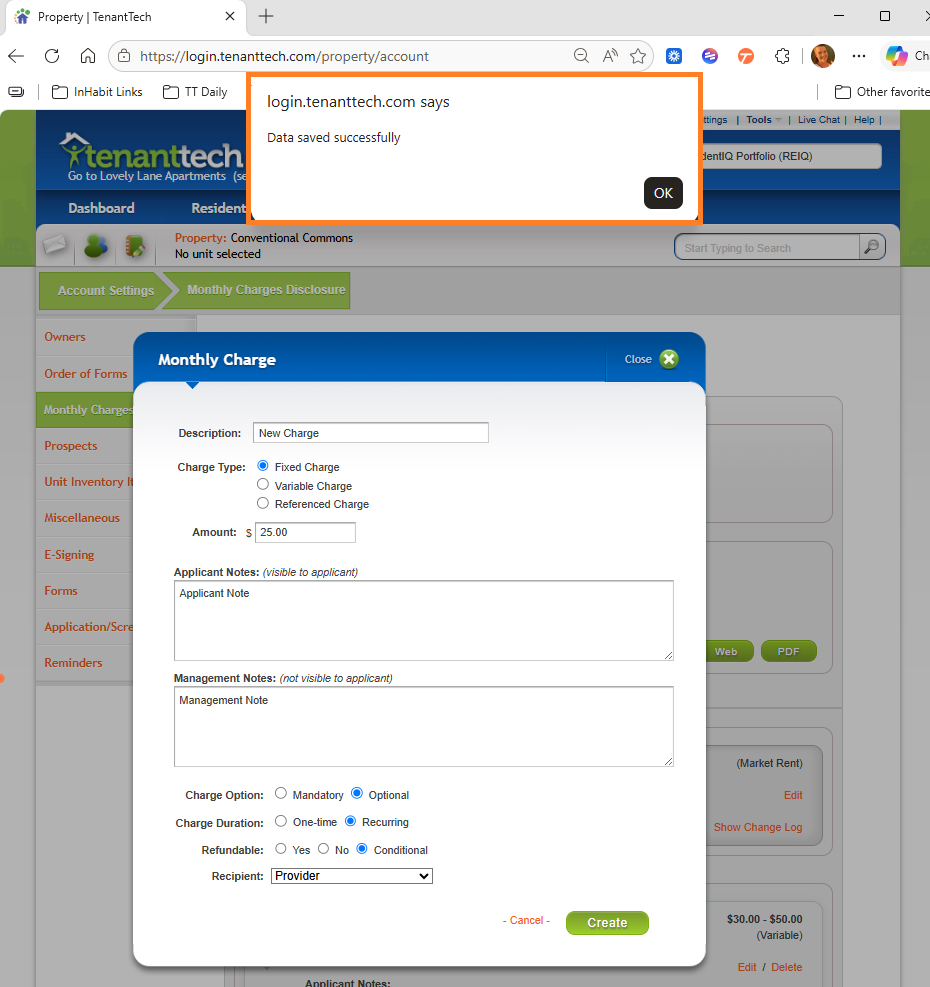
Step 5- Save Charge by selecting Create
System will show user that the Data is saved successfully.
Step 6- Review Charge list in Account Settings
Users can modify the order of the charges that display to the user by selecting the charge and dragging to the appropriate spot within the charge list.
Step 7 - Preview Charges on the Online Application
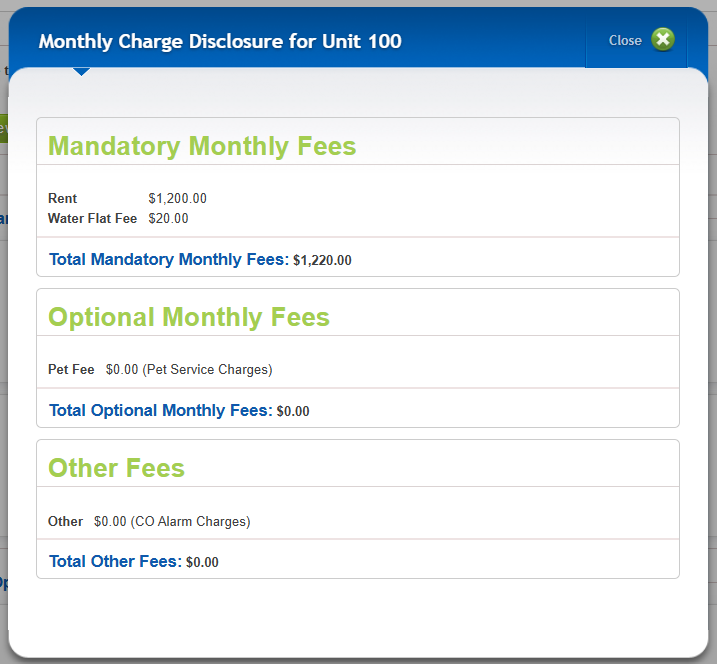
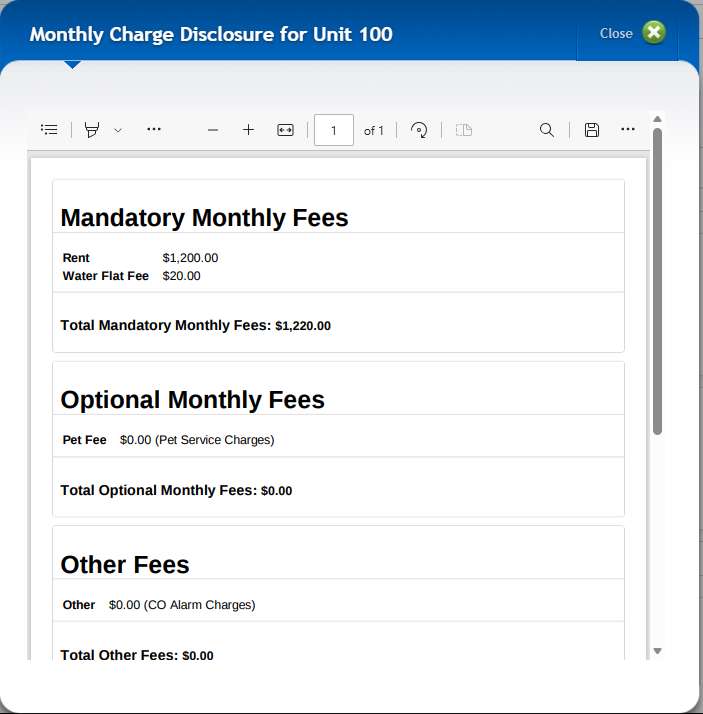
Preview the charges prior to the applicant by selecting the unit you wish to preview charges for in program. Select to view Web or PDF version of the charges. Note- the PDF version of the charges is what will be visible to site teams when printing the Application PDF.
- Preview by selecting Web:
- Preview by the PDF option. This view allows users to print what is displaying in preview window:
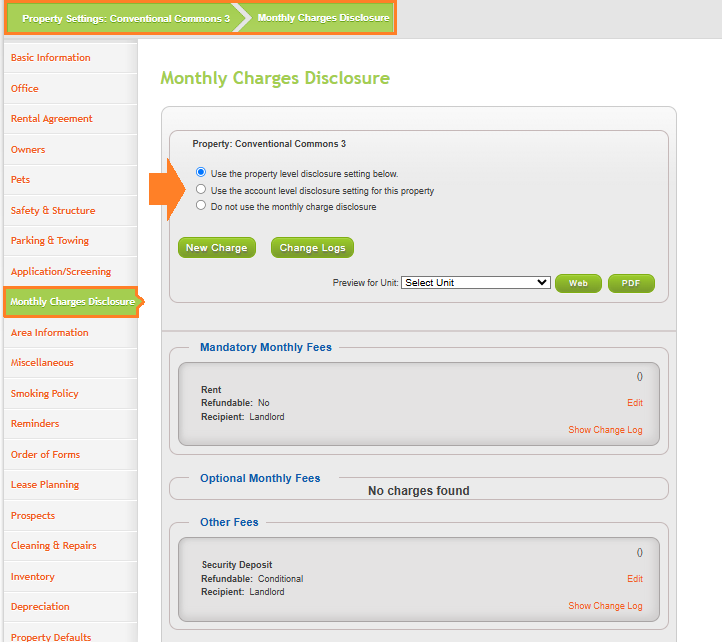
Step 1- Go to Property Settings and select Monthly Charge Management
When opting to use the feature- the system will display a Rent Charge and Security Deposit Charge.
Users must modify the charges in the Mandatory Charges section. This charge can be modified but not deleted.
Accounts and Properties are set to No by default when the account / property is established in TenantTech.
If users opt to use account level disclosure settings, see steps in adjusting account level disclosure settings for the account in Account Settings.
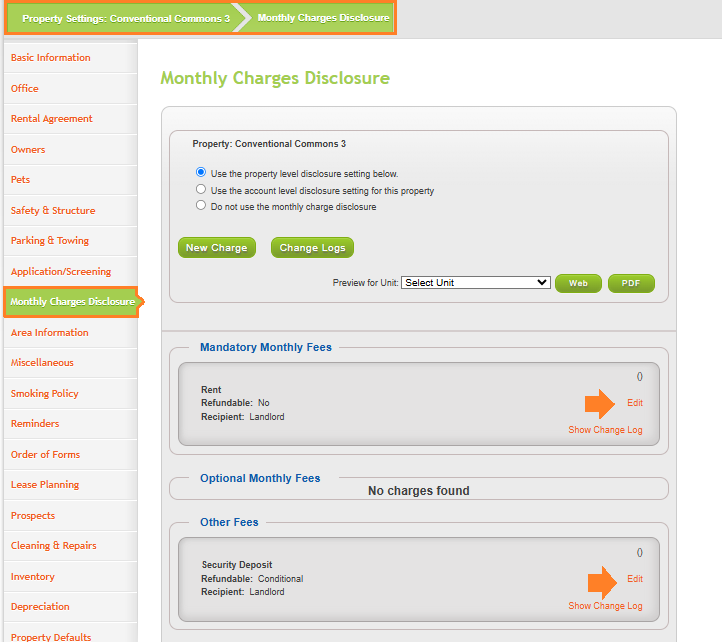
Step 2- Modify Rent and Security Deposit Charges
Users will need to modify the details for Rent and Security Deposit Charges. These fields can not be deleted or removed from the Property Setting.
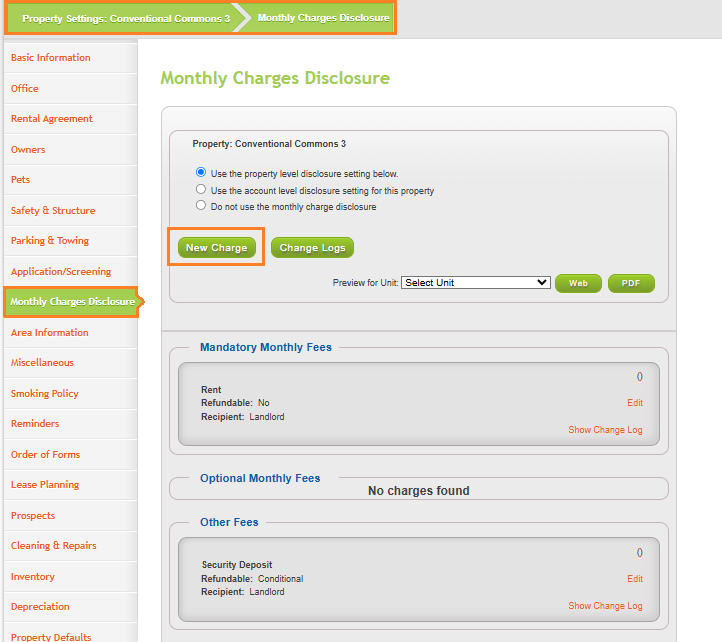
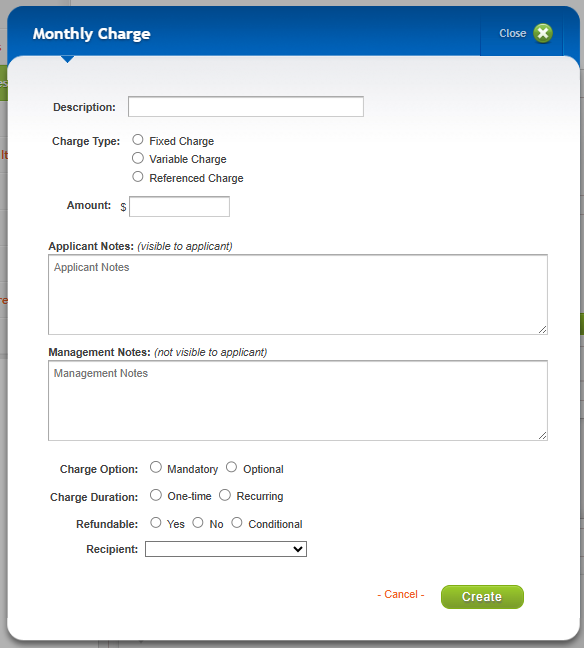
Step 3- Create a New Charge
Select New Charge Button to add fees that will be displayed to the applicant during the Online Application process.
Step 4- Enter New Charge Description
Entering the following fields:
- Description
- Charge Type
- If Fixed, enter amount.
- If Variable, enter amount range.
- Amount
- Applicant Notes- this is visible to the applicant during the Online Application Process.
- Management Notes- this is not visible to the applicant during the Online Application process.
- Charge Options-
- Mandatory - required by all applicants
- Optional- not required by all applicants
- Charge Duration-
- One Time- single payment /charge paid for by the applicant.
- Reoccurring- monthly or reoccurring charges paid for by the applicant.
- Refundable-
- Yes
- No
- Conditional
- Recipient-
- Landlord
- Provider
- Other
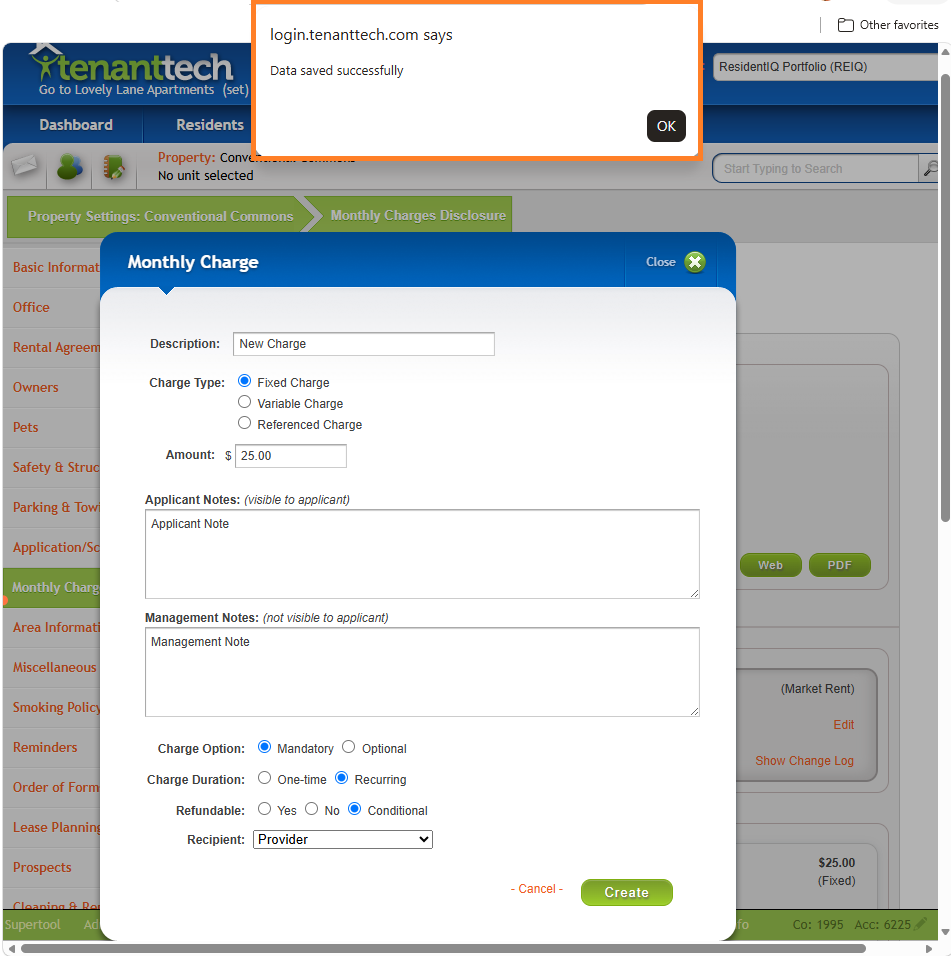
Step 5- Save Charge by selecting Create
System will show user that the Data is saved successfully.
Step 6- Review Charge list in Property Settings
Users can modify the order of the charges that display to the user by selecting the charge and dragging to the appropriate spot within the charge list.
Step 7 - Preview Charges on the Online Application
Prior to the applicant by selecting the unit you wish to preview charges for in program. Select to view Web or PDF version of the charges. Note- the PDF version of the charges is what will be visible to site teams when printing the Application PDF.
- Preview by selecting Web:
- Preview by the PDF option. This view allows users to print what is displaying in preview window:
The following are resources/information for managing this new feature in TenantTech:
- Change Log- allows company admins to view the changes made in bulk to all charges. Individual change logs can be viewed by selecting Show Change Log.
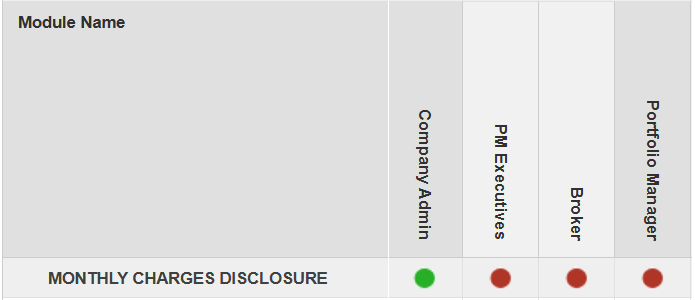
- User Permission- that relates to the new feature. Default privileges would mean company admins are the only user group that can enable the setting for the Account or Property.
- Disclaimer- Text box allows for company admins to enter text or information they would like to be visible to the applicant when applying. This information will print with the Application PDF - Monthly Charges Disclosure.

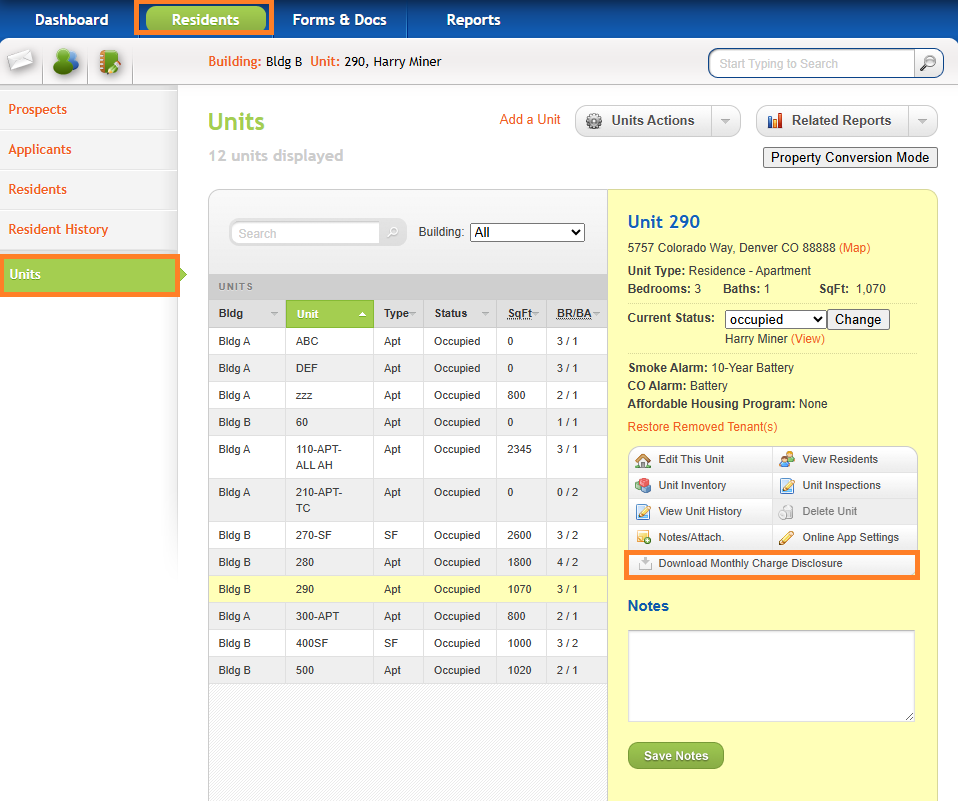
- Print/Download Monthly Charge Disclosure- all Accounts or Properties that opt to use this feature will have a new menu button available on the Units page in program. After users select a unit in program, the unit details panel will allow you to select Download Monthly Charge Disclosure to download/print a copy of the charges that display for this unit using the Monthly Charges disclosure.