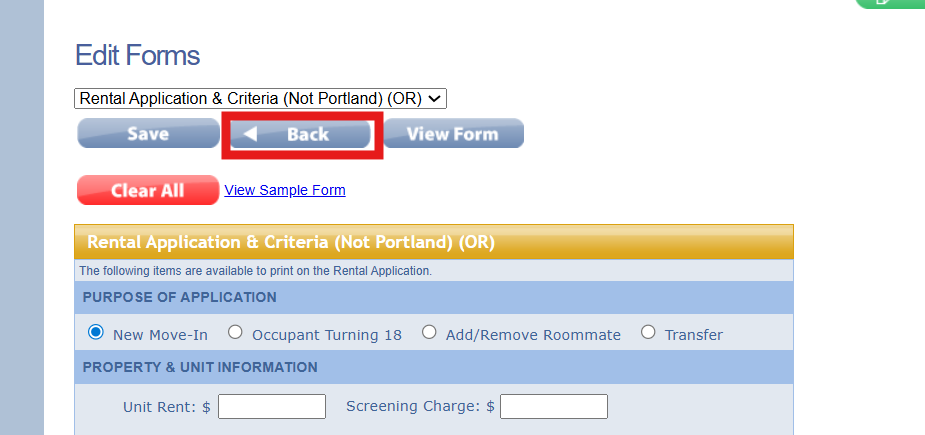
You do not need to purchase the same forms more than once in a 7-day period. You can write the forms for as many landlords/tenants as needed during the edit period with your purchase.
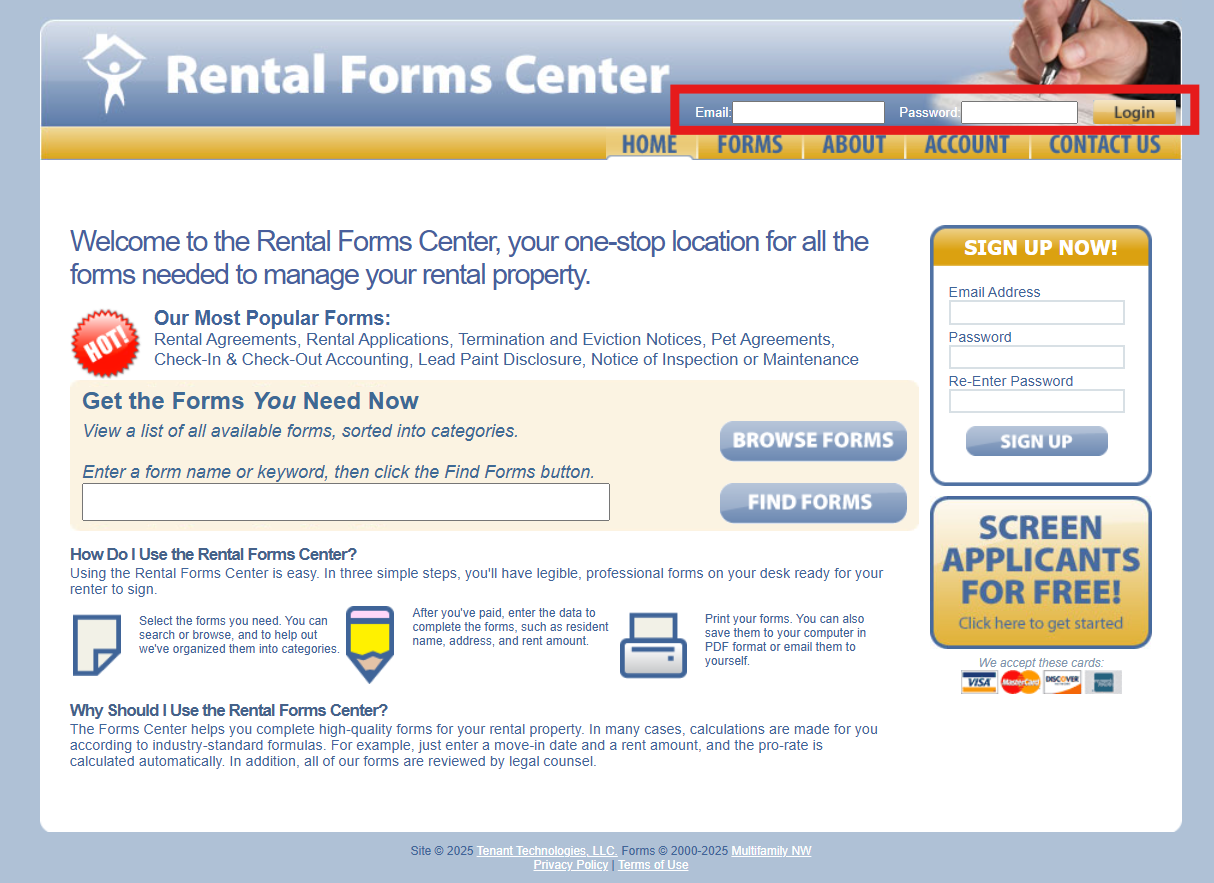
1. To access the form you have already purchased, you will need to ensure you are logged in to your Rental Forms Center account. If you are not logged in, you can login to your account by entering your login credentials at the top right of the page >> and click Login
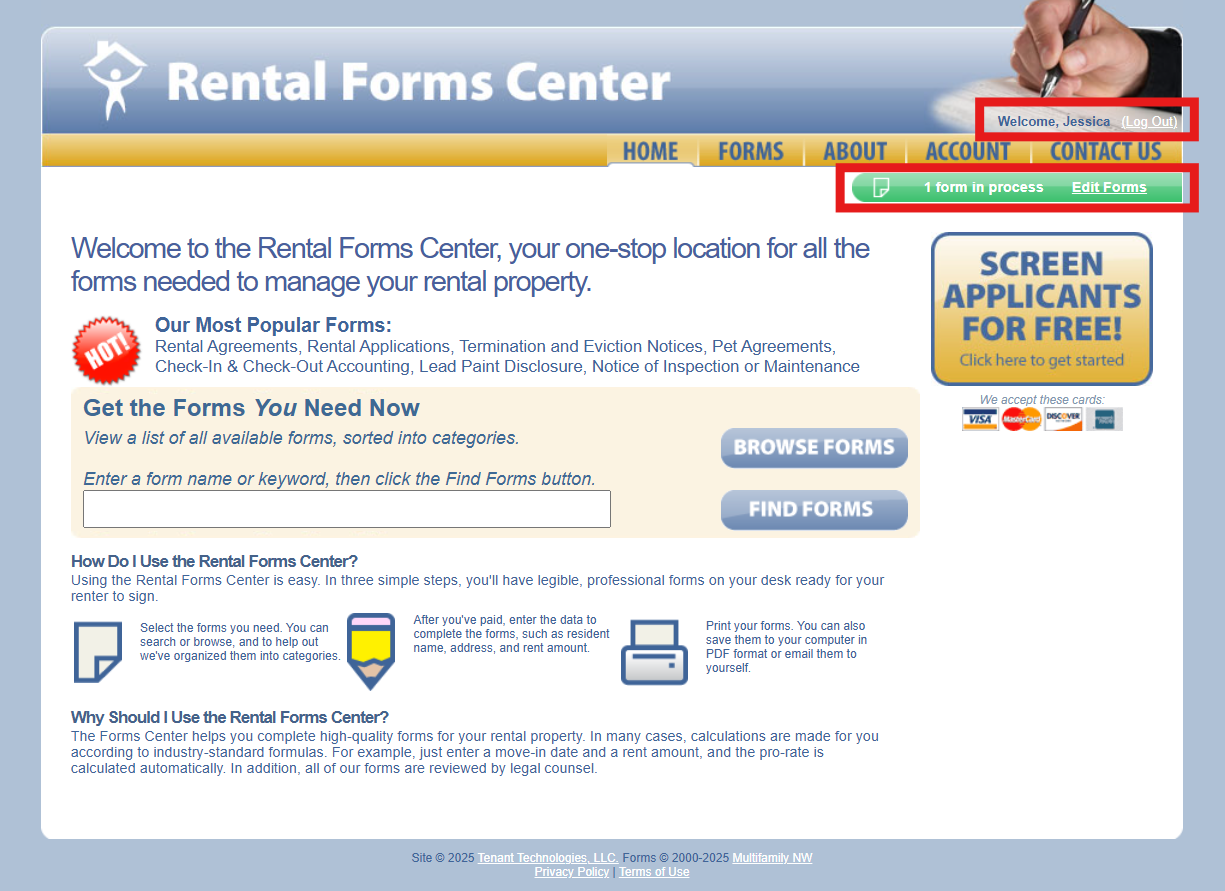
2. Once logged in, you will see your name in the top right corner- and a green box showing your Forms in Process. The forms purchased will only be available for electronic edit for 7 days after purchase. Then you will click Edit Forms
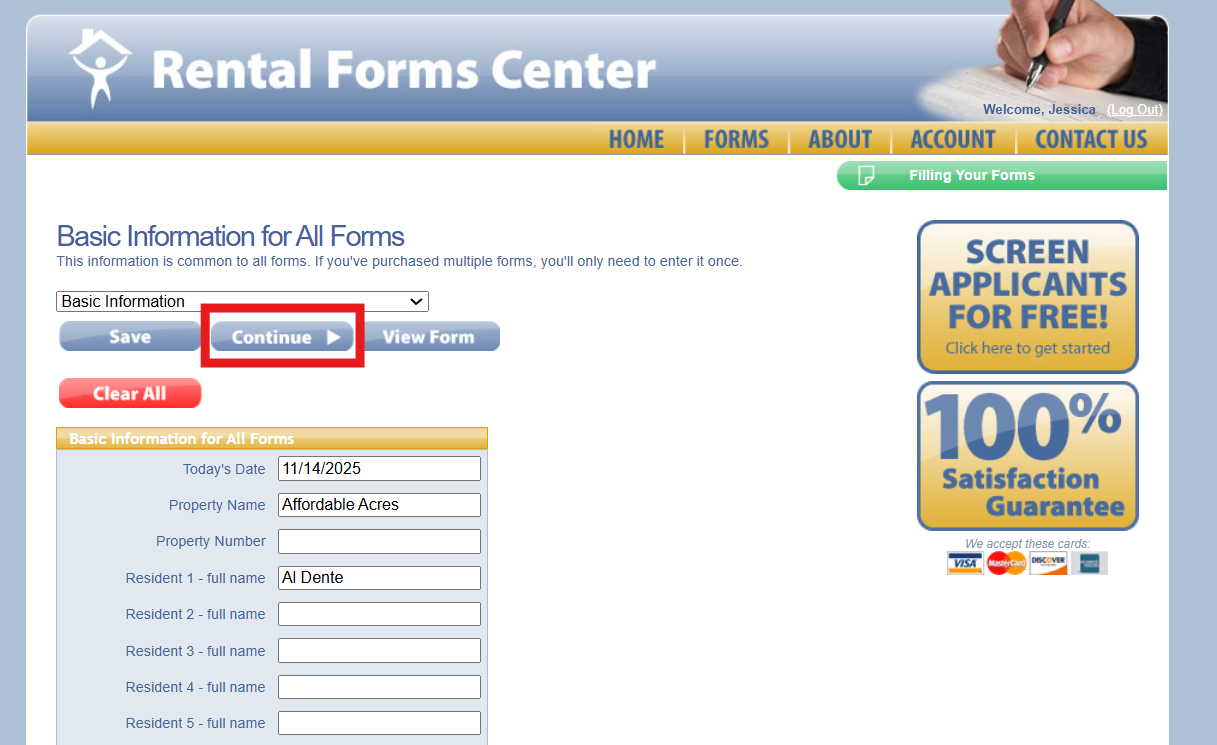
3. You need to complete the edit process completely for each Resident Group that is requiring the same form. You will always be prompted to first review or edit the Basic Information that would apply to all current forms you are generating. Once the Basic Information is accurate for the current edit >> you will click Continue to move on to editing the forms
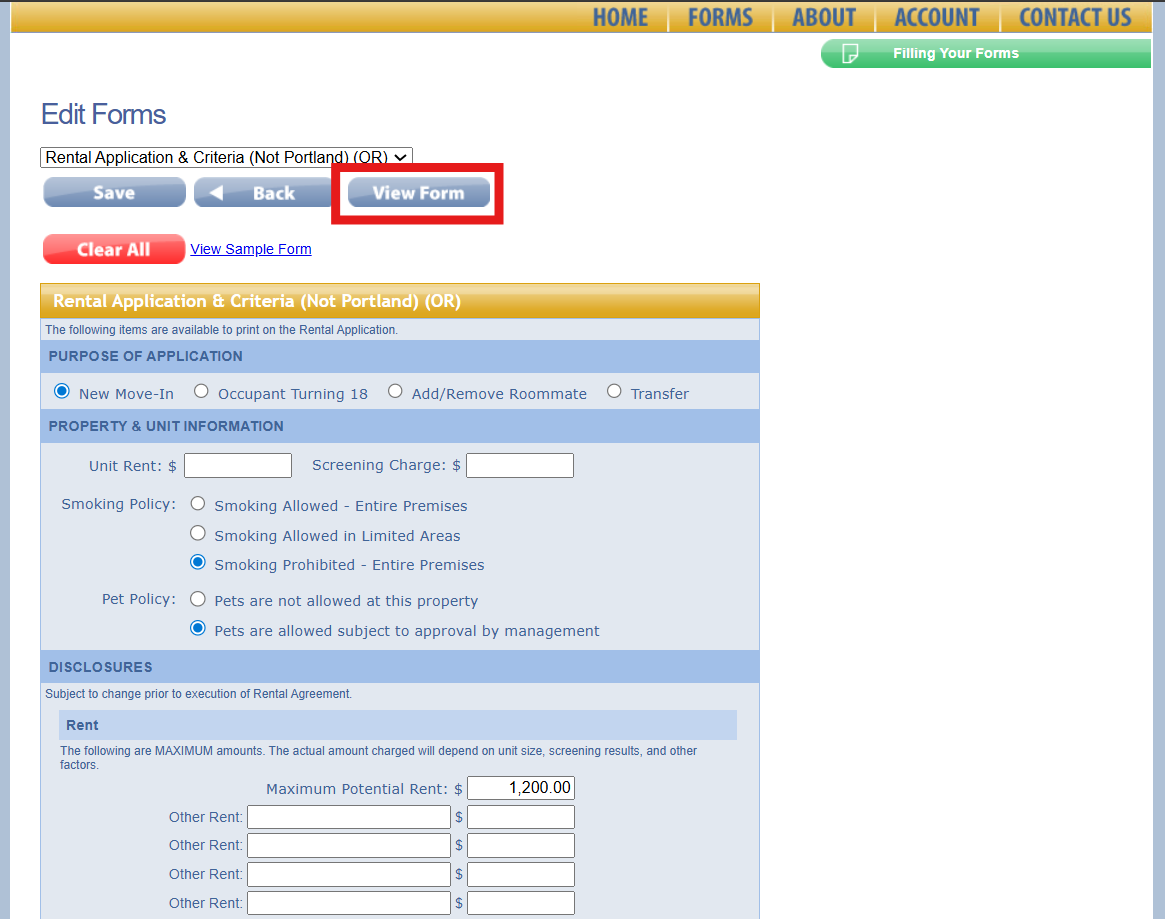
Note: The option to "Clear All" is available if all new information is required for this resident group
4. Once you have completed the edit of the active electronic forms, and are ready to view the Final PDF click View Form
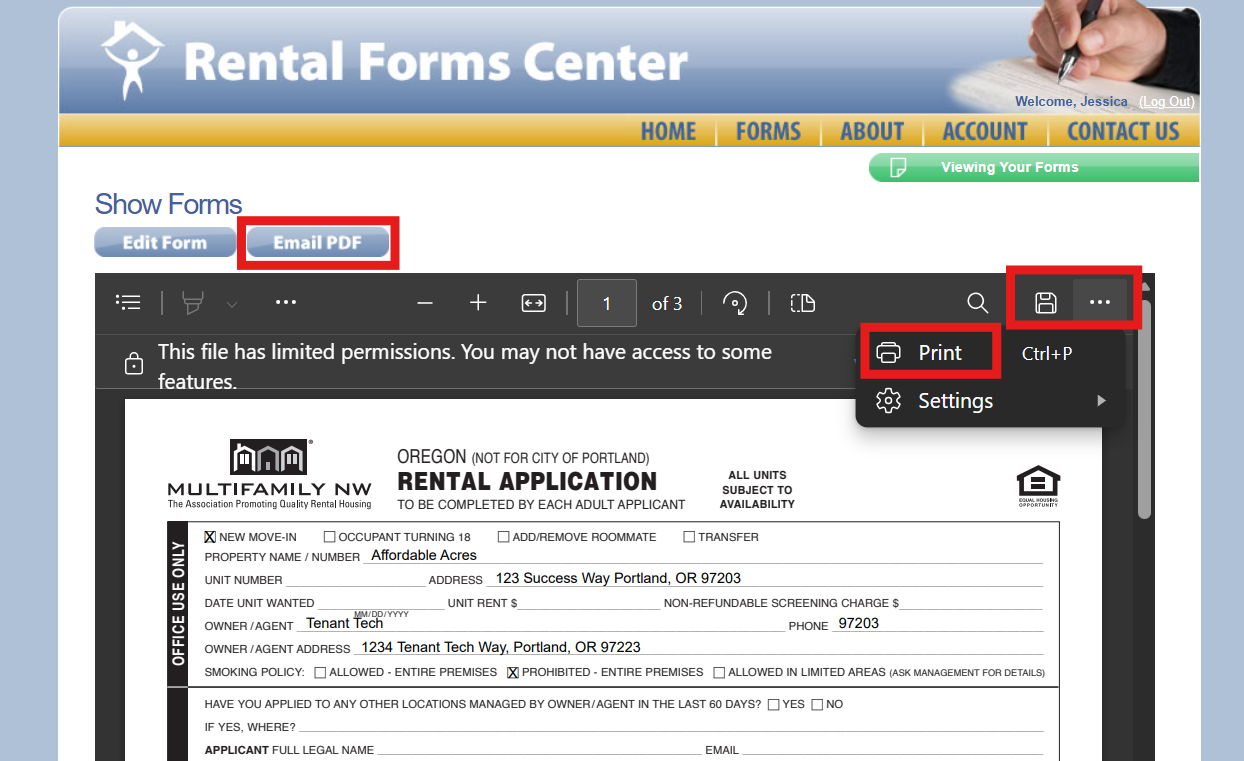
5. Then you will want to download, email or print a final copy of the forms for each completed group of documents in order to save the edit you just completed.
Important: If you are making multiple edits on the same form for different residents or units- you will need to Save/Print/Email each edit you complete.
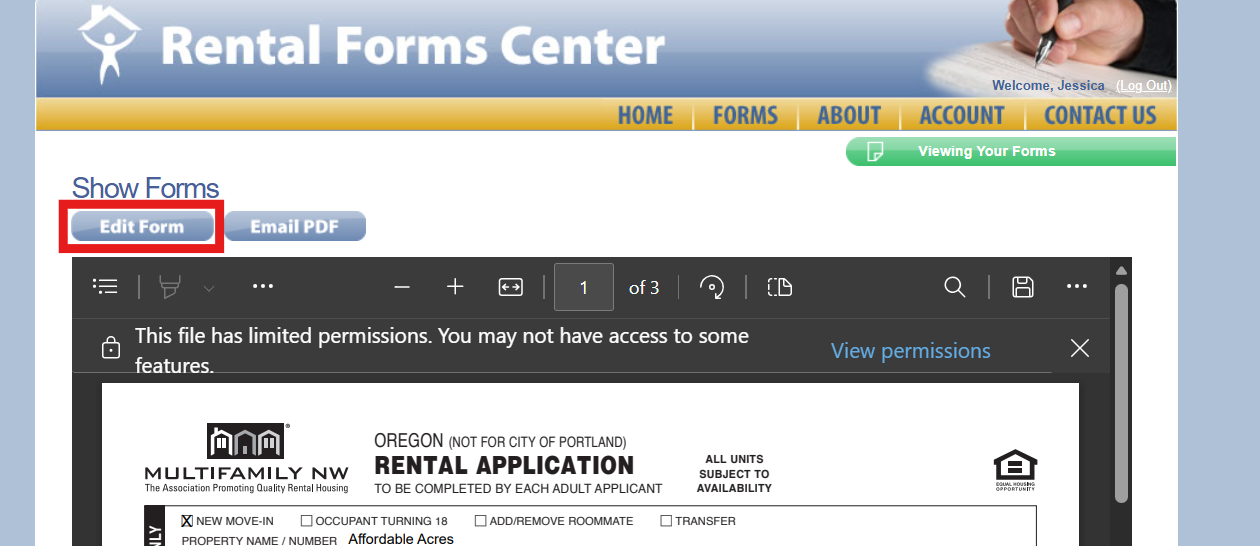
6. Once you have finalized a group of documents, you can go back and begin the edit process again by clicking Edit Form >> to complete another electronic edit of the same form
7. If you need to edit or clear the basic information page as well > click Back to get to the Basic Information again