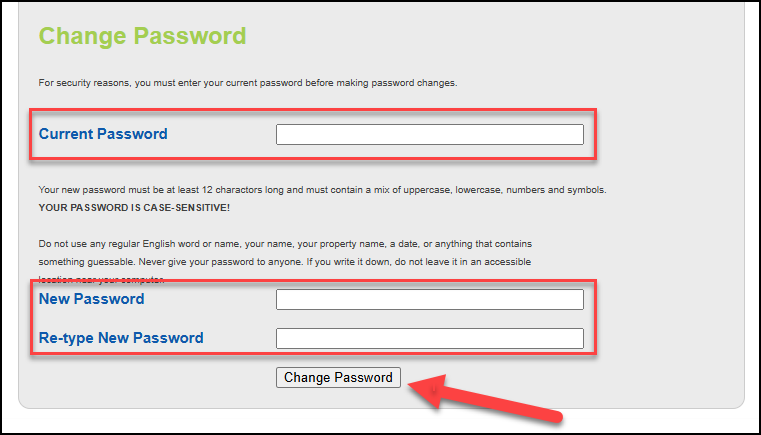
This article will walk you through the process of changing your user password found within your User Settings.
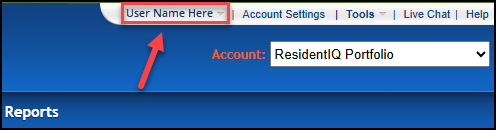
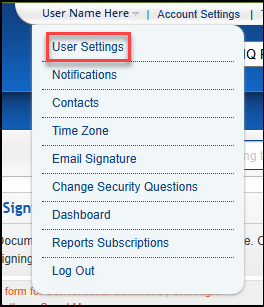
Step 1: You can access your user settings by clicking on your User Name located at the top of the page, and selecting User Settings from the drop down menu.
Step 2: Toward the bottom of your User Settings page, you will see the option to Change Password. For security purposes, you will be required to enter your current password before entering your new password.
Step 3: Enter your new password, and enter it a second time for confirmation, then click on Change Password.
*Note: Your new password must be at least 12 characters long and must contain upper case, lowercase, numbers, and symbols.