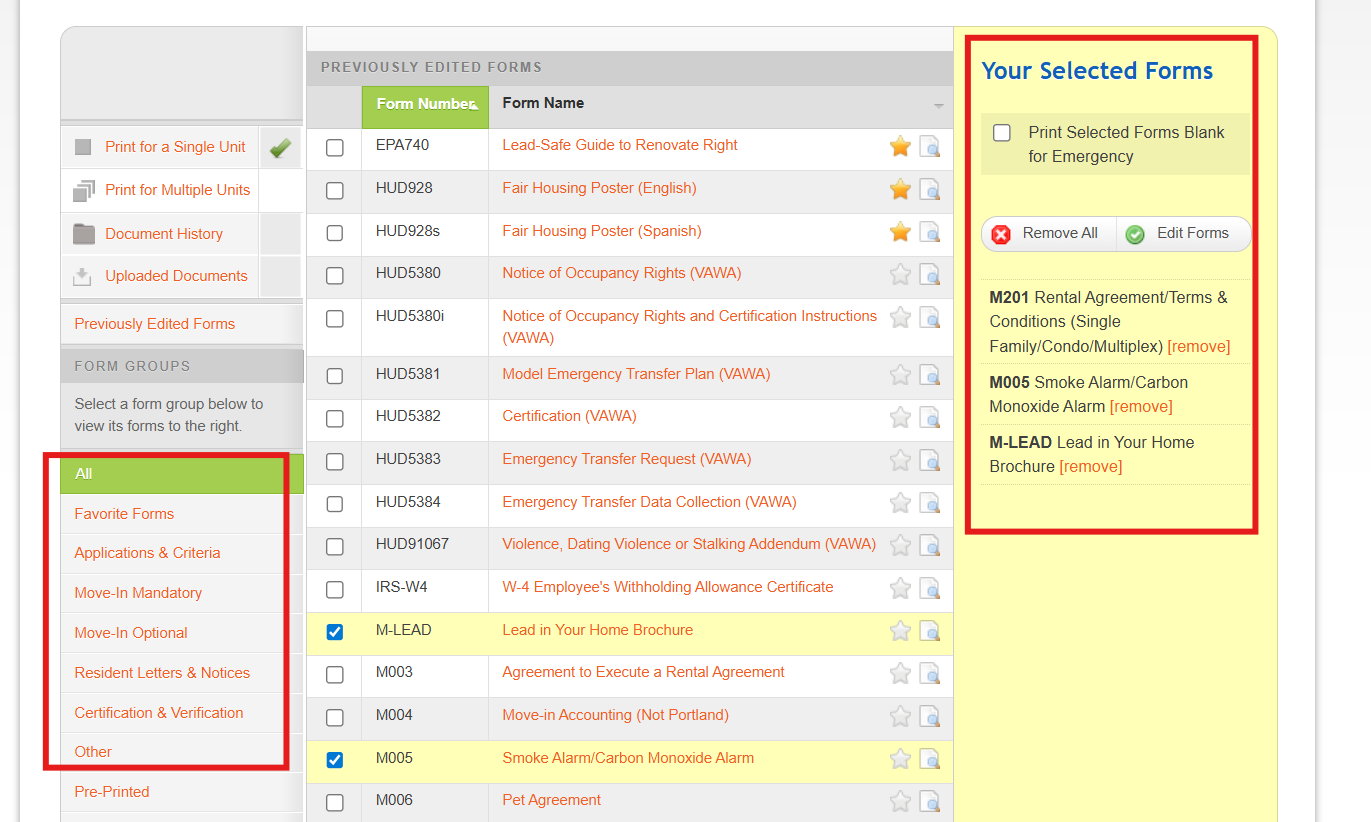
This article walks you through how to use the Previously Edited Forms group found in Forms & Documents. This feature is designed to save time by allowing site teams to quickly re-generate the same forms previously created for a resident without having to search through the entire forms list again.
The Previously Edited Forms group automatically stores the forms most recently generated for the selected resident.
This is especially useful when:
- You’re continuing work on a packet started earlier
- You need to quickly regenerate forms for updates or corrections
- You frequently create the same sets of documents for a resident
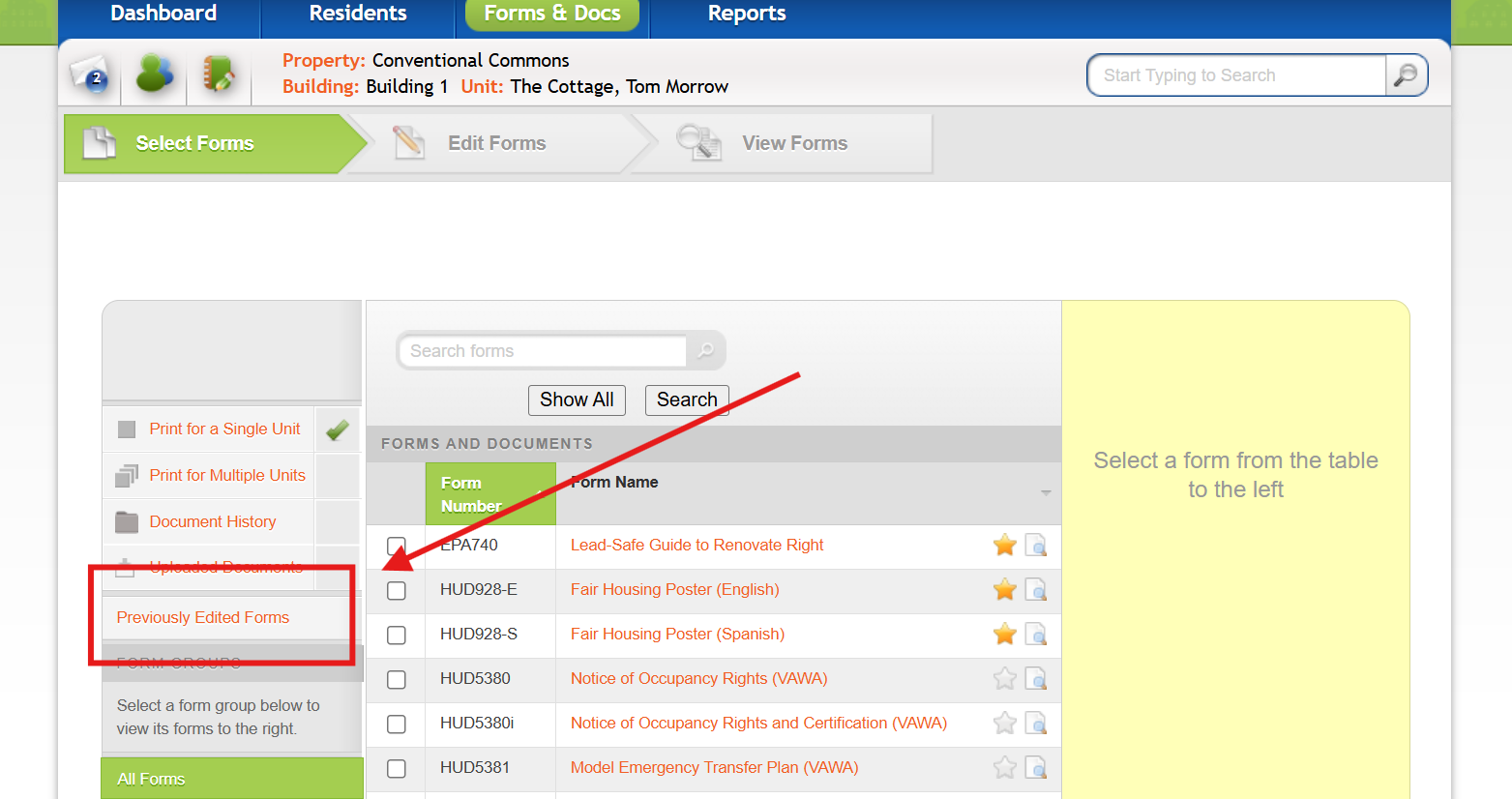
Before generating any documents, make sure you have the correct resident selected. Selecting the resident first ensures the system pulls up the correct set of previously generated forms.

Step 2: Go to Forms & Docs → Select Print for a Single Unit → Select Previously Edited Forms.

Step 3: Select and Review Previously Edited Forms group
After choosing Previously Edited Forms, the system will display a list of the forms most recently generated for that resident.
From here:
- Review the list of forms available.
- Select Add for each form you want to include in the new packet.
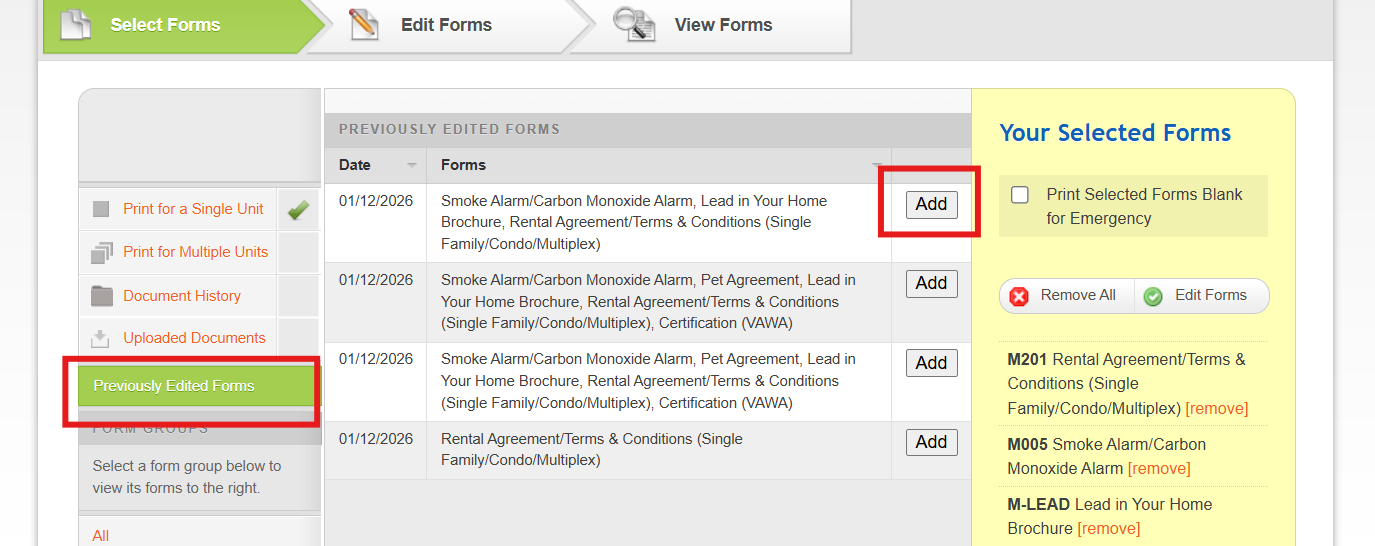
Step 4: Edit or Continue Building your Form Packet
Once your forms appear under Your Selected Forms, you have two options:
- Option 1 – Start Editing Forms
- Click Edit Forms to begin editing and generating the documents.
- Option 2 – Add Additional Forms
- You can still navigate to any other form group. Your selected forms will remain intact as you browse, allowing you to add new forms.
- Add new forms
- Remove forms you no longer need.
- Mix previously edited forms with new ones.
- Click Edit Forms to begin editing and generating the documents.
- You can still navigate to any other form group. Your selected forms will remain intact as you browse, allowing you to add new forms.