
This guide walks you through how to upload and configure a custom criteria page within an online application in Tenant Tech. Only users with the appropriate permissions, typically a Company Admin User- will be able to complete these steps.
How to Upload a Custom Criteria PDF
- Go to Account Settings
(For Multiple Property Accounts, this is located under the property settings to be set at a property level) - Select Application / Screening
- Locate the application you want to update
- Click Choose File
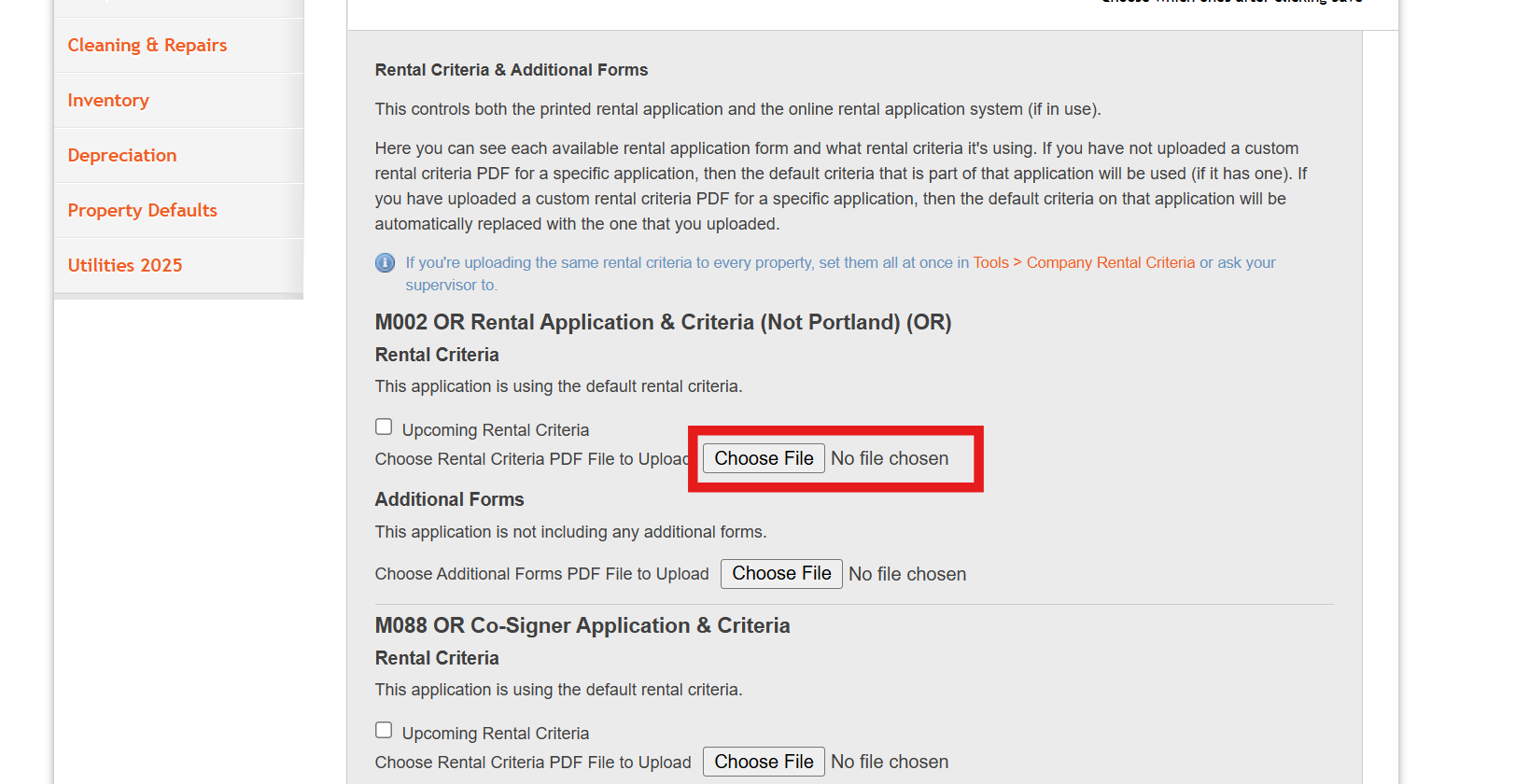
5.Choose the file PDF you want to upload from your files, Click Upload.
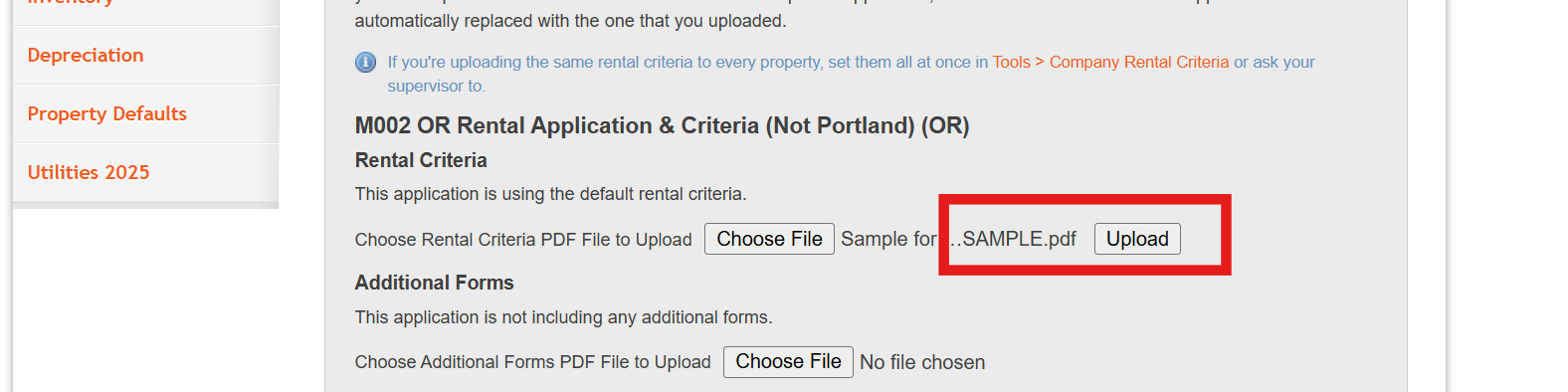
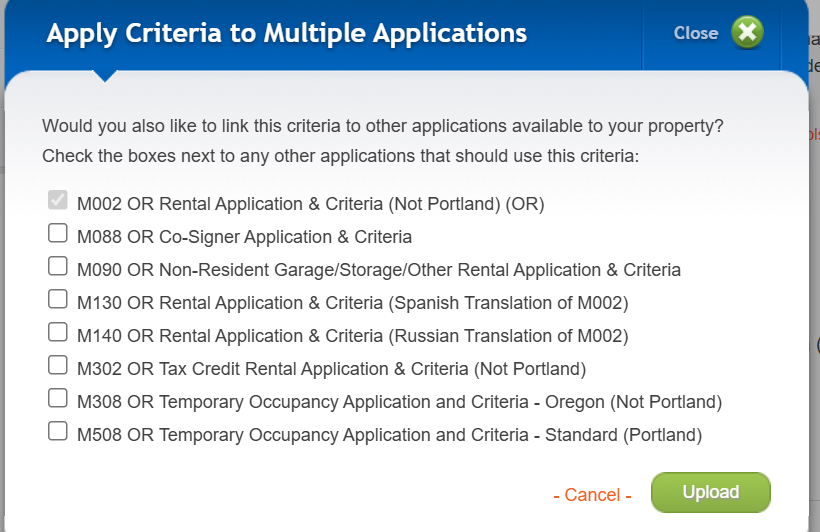
6. After the file uploads, you will be prompted to select whether this criteria should be added to
multiple application types. Make your selections if applicable, then click Upload .
8. After uploading, you will be taken to a new screen where you can define the required fields on your PDF.

9. If you do not have signature, date or initial fields- click no, until you return back to the settings
page. - If you do, please see instructions below.
Signature Field
- When prompted, indicate whether the document requires a signature box.
Select Yes if applicable.

Click on the PDF where the applicant should place their signature.
- Adjust the field as needed:
- Drag to reposition the box.
- Drag the corners to resize the box.
Click Next once complete.
Date Field
- When asked if the form requires a date field, select Yes if applicable.
- Click on the area of the PDF where the date should appear.
- Click Next after placing the field.
Initials Field
If initials are required, follow the same steps as above.
Click on the appropriate location on the PDF to place the initials box.
Click Save when all fields have been configured.
Then you will be redirected back to the settings page once all areas have been completed.
Optional Actions After Saving
After saving, you will have the following options:
- Download the configured PDF
- Mark/Preview Signature Areas
- Remove the custom criteria from the application if needed