
2. From the applicant list, select the applicable applicant or applicant group.
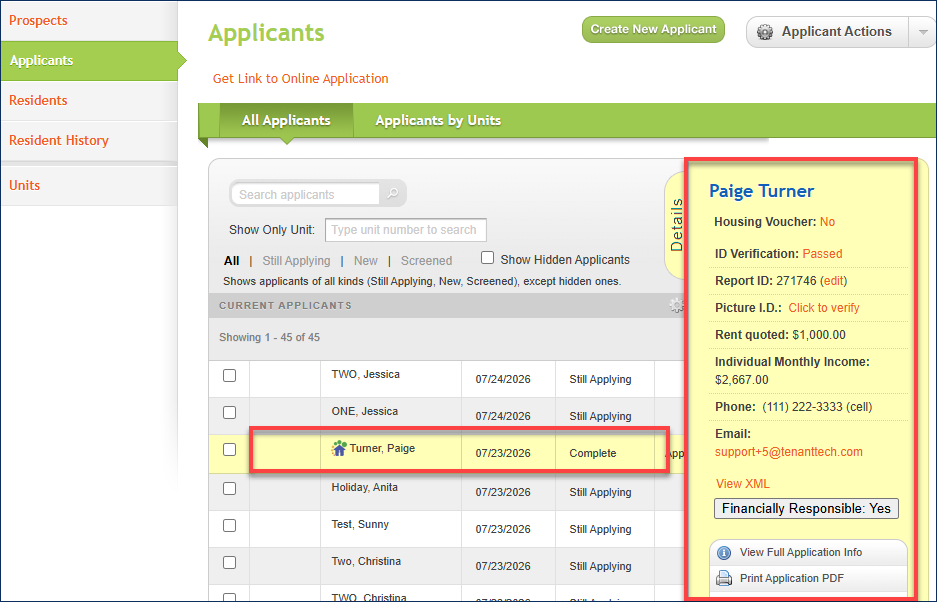

*Note: If you select an applicant group, the Applicant Details Panel displays a group management menu in addition to the standard menu for individual applicants. Properties utilizing the integrated screening service through Western Reporting will see a group menu option to Send Group to Screening, allowing them to send the applicants to screening as a group rather than individually selecting each applicant to send to screening. This group menu option is only available for properties utilizing Western Reporting’s applicant screening services.
- For detailed instructions on creating applicant groups, see our article on Linking Applicants - Creating Applicant Groups.
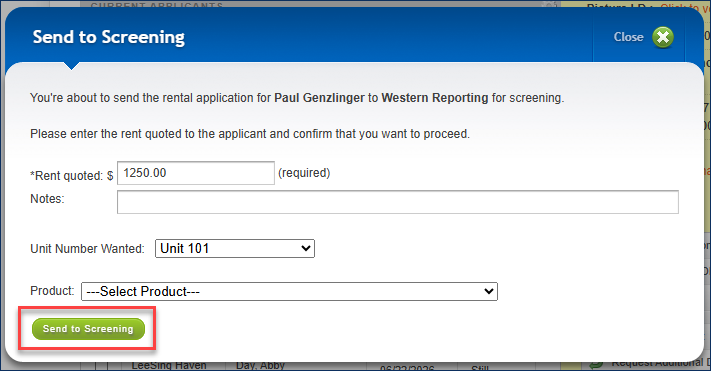
- Rent Quoted Amount -- Confirm or enter the quoted rent for the unit.
- Notes -- Allows you to leave notes for screening company.
- Unit Number Wanted -- Confirm that the unit the applicant is applying for is selected.
- Product -- From the drop-down menu, select the screening product and report type that you are requesting from the screening provider.
Once all the information has been entered and confirmed, click the Send to Screening button found in the bottom left corner of the window.
Video Resource
https://vimeo.com/1172584435?share=copy&fl=sv&fe=ci
Password: Screening%3