
The updated Bulk Signing feature allows owner/agents to countersign multiple forms and resident groups at once, making the signing process faster and more efficient. This enhancement helps streamline bulk signing by providing the ability to:
- Preview documents before signing
- Quickly view key lease details (lease term, rent, and deposit) for Rental Agreements
- Confirm whether all required forms have been fully signed by the resident(s)
Where is the New Bulk Signing Preview Page Located?
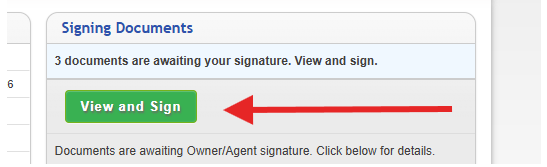
On the TenantTech Dashboard, Users will see a View and Sign when documents are assigned to you for Owner/Agent signature, and the residents completed signing.
How to Apply your Countersignature with the new Bulk Signing Preview Page
Step 1- Click View and Sign to launch the Bulk Signing Preview page.
- Property and Unit – Confirms where the documents apply
- Resident(s) – Displays associated resident names
- Documents – Lists the forms included in the packet
- Lease Dates & Lease Type – Helps verify correct lease terms
- Rent & Deposit – Allows spot-checking of financial details
- Status indicators – Shows whether all required signatures are completed or if a resident has declined/cancelled a document signing
- PDF icon – Opens a preview of the document set before signing
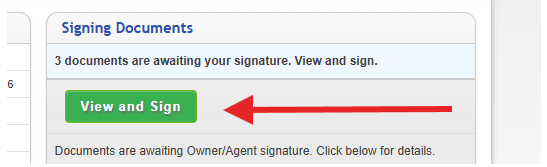
- Users can select individual documents or use bulk selection
- Click Countersign selected docs to proceed with signing
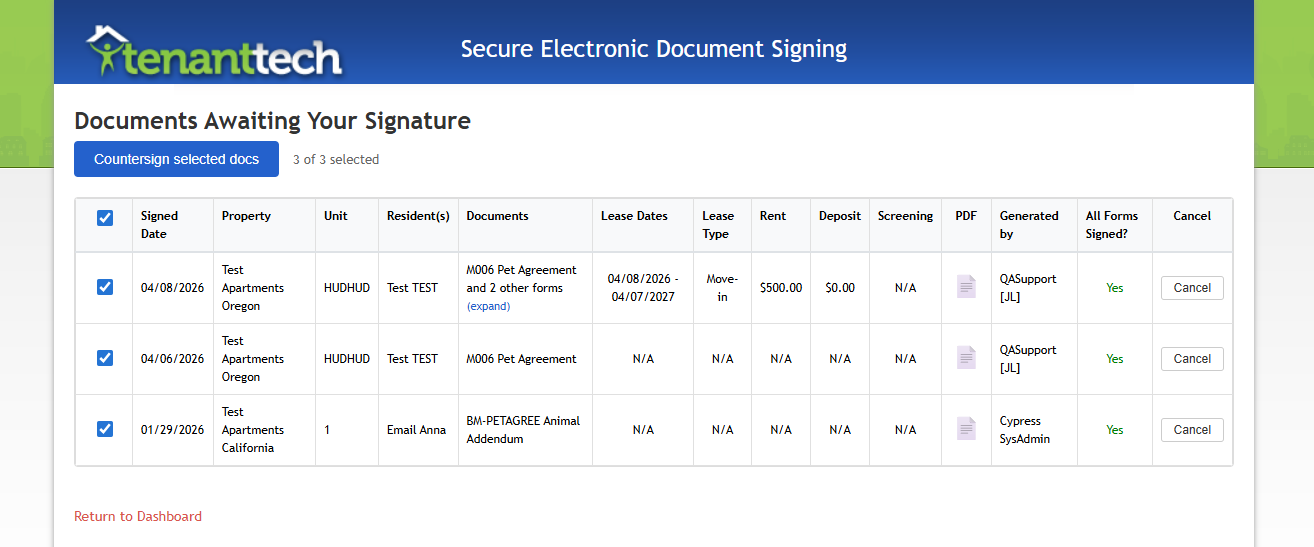
Step 3- Once users have selected the forms you wish to countersign, they will be prompted to confirm if they would like to move forward with applying their countersignature to the selected forms. Users should select OK to apply their signature to selected forms.
Note: Once documents are fully signed by the Resident, and Owner/Agent the Resident will receive an emailed copy of the forms automatically.
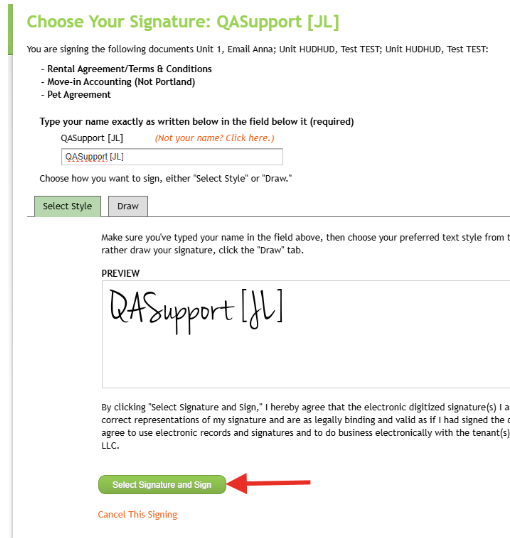
Step 4- The system will prompt users to type their name as displayed in the preview. Users will type/draw in your name. The name entered must match previewed area, there is no option to modify spelling of your name that you are applying to select forms.
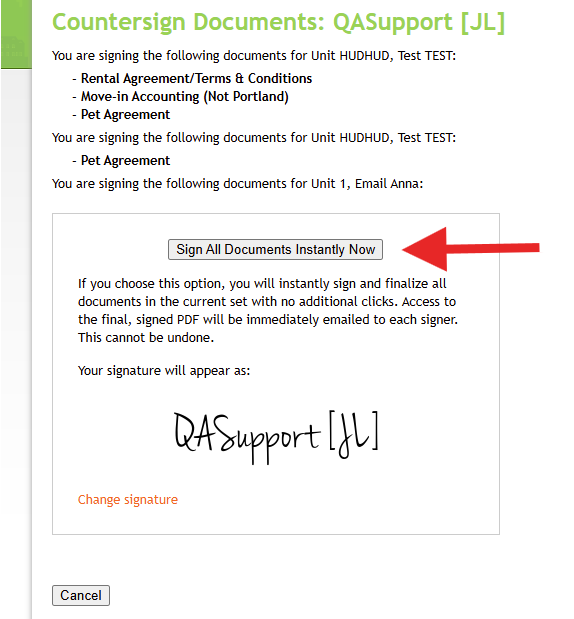
Step 5- Once complete click Select Signature and Sign. Users will have another opportunity to review the units, and document names you are countersigning
Step 6- Once you are ready to move forward, click Sign All Documents Instantly Now.
Cancel Signing
You can cancel a signing directly on this page as well. If you choose to cancel a signing from here, the documents will need to be regenerated, and reissued for electronic signature. This will cancel the document entirely.
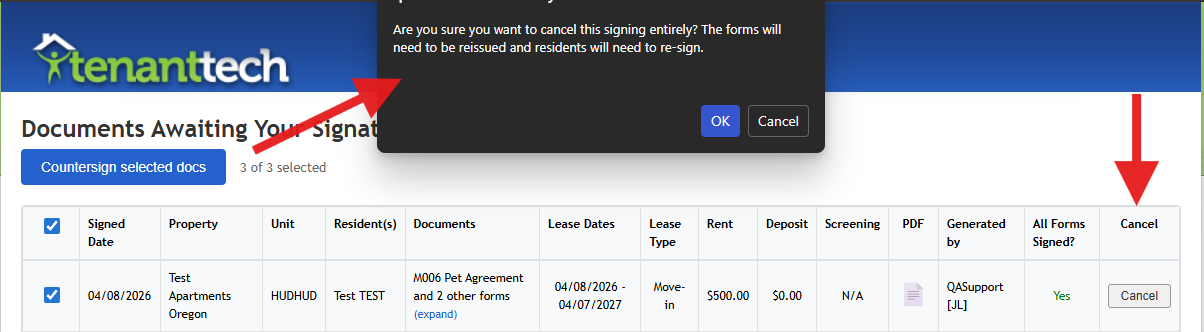
Examples of why an owner/agent would cancel after resident signatures:
- A typo or incorrect data was found upon review
- The Resident did not sign all documents
The program will inform you if the resident did not sign all documents. You can hover over "No" to view the reason the Resident Skipped a signing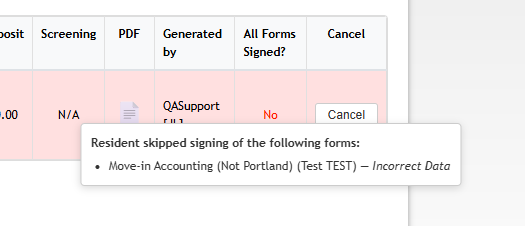
Email Notification Links
If your notification settings are set to accept email notifications for electronic signatures - Email links take you directly to Preview.
Document Requires Signature emails now open the Bulk Signing Preview page for faster access.

Please see related article if you are interested in adjusting your user notifications: How to Update User Notifications : TenantTech
How to Disable Bulk Signing at a Company Level
Company Admins should reach out to support@tenanttech.com to request that this feature is disabled at a company level.