What is ID FraudGuard?
ID FraudGuard, powered by CLEAR, is a secure way to verify that an applicant is who they say they are. Instead of checking physical ID documents, the applicant completes a guided selfie scan that uses unique facial features to verify their identity.
ID FraudGuard is a third-party service built into TenantTech's Online Application. Applicants start and complete the identity check before they can move forward with the online application. Site teams see a simple pass/fail result right away, helping reduce fraud and confirm the application is tied to a real, verified person.
What Applicants Can Expect During the Online Application Process
Key Things to Keep in Mind for Online Applications
- Applicants complete ID FraudGuard as part of the online application workflow.
- If an applicant is unable to complete ID FraudGuard, the site team must complete an Identity Verification override before the applicant can continue their application.
- Leasing teams cannot modify or resubmit ID FraudGuard on the applicant’s behalf.
- If the applicant’s email address or phone number is incorrect, they must start a new online application using the correct information.
- If an applicant fails ID FraudGuard, the site team must complete an Identity Verification override before the applicant can continue their online application.
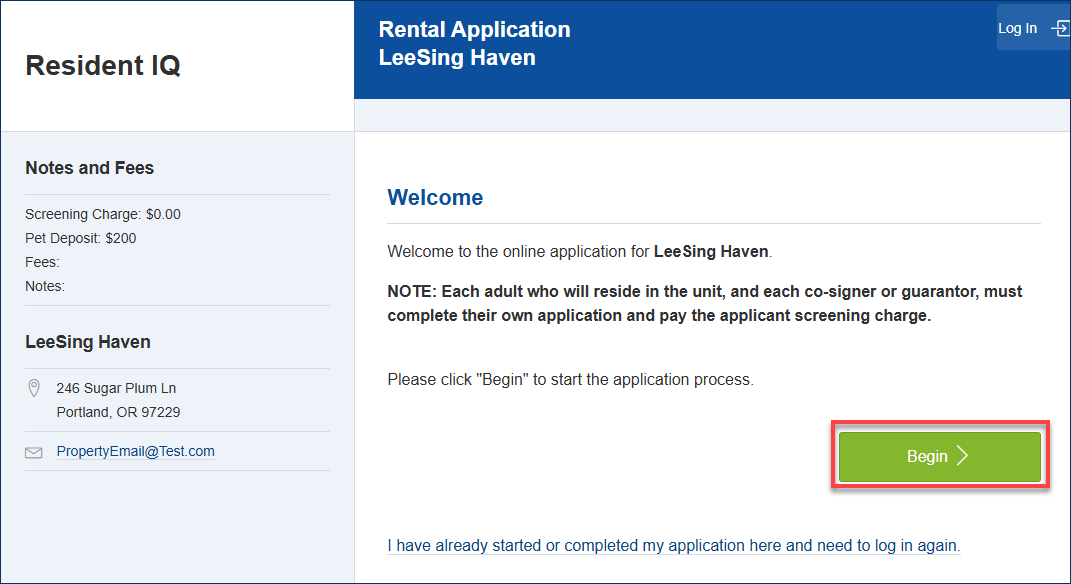
1. Welcome Page
When applicants click on the online application link, they will first see the property’s Welcome Page. To begin, they select Begin.
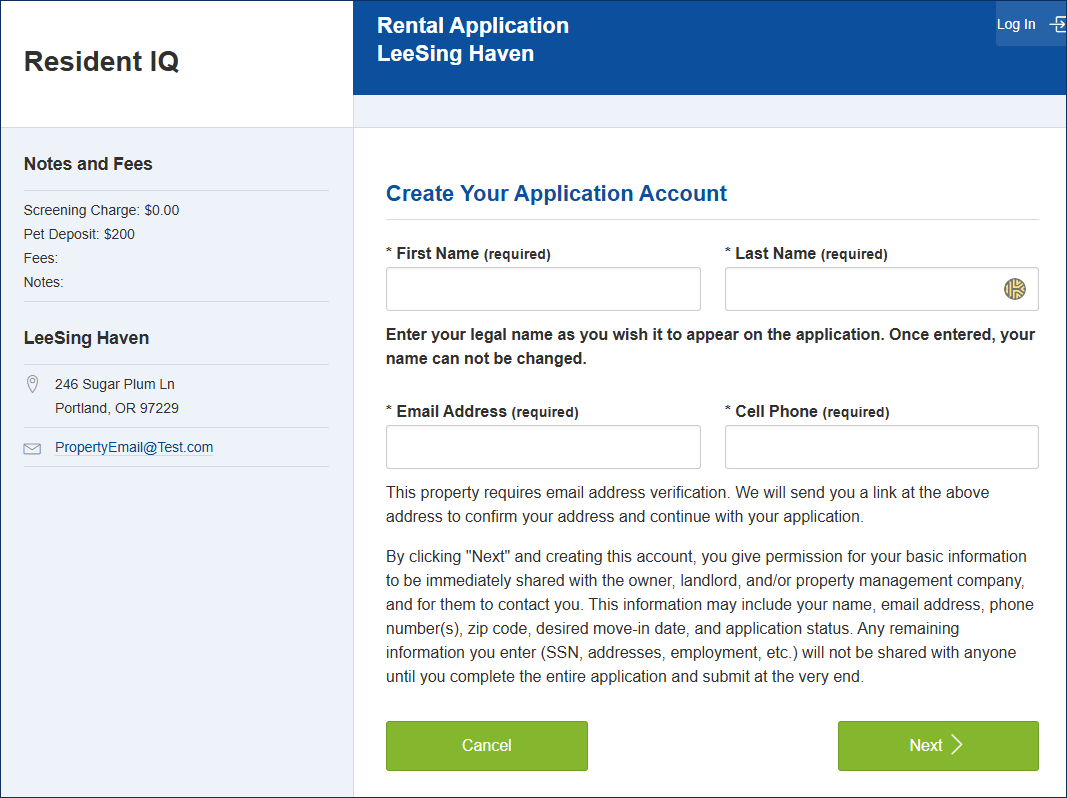
2. Start the Application
Applicants start the application as usual by entering their name, email, and 10-digit phone number.
*Important Note: International applicants may enter the office phone number or another U.S. phone number.
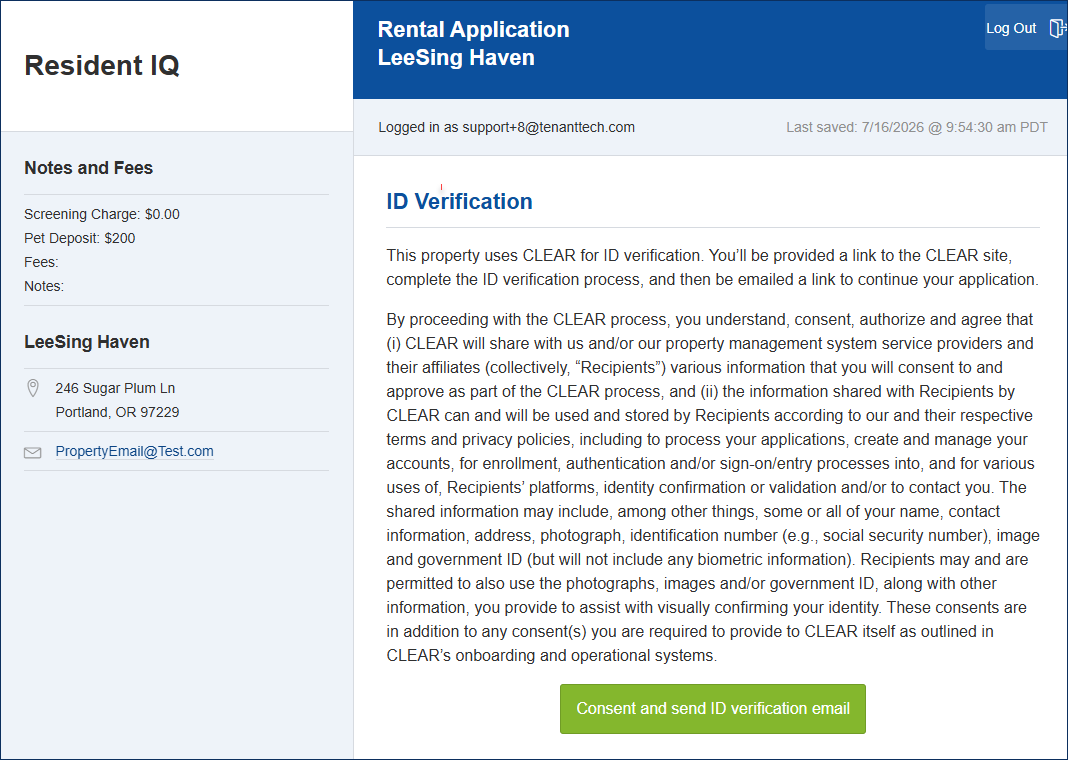
3. Identity Verification Consent
The applicant reviews the legal disclaimer and clicks on Consent and Send ID Verification Email.
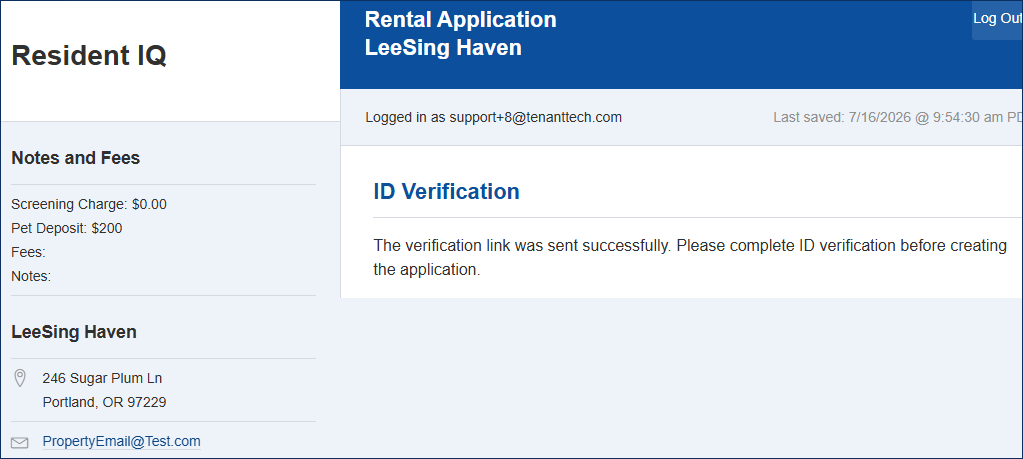
4. Verification Link Sent – Confirmation
A message is displayed to the applicant, confirming that the link has been sent to the applicant.
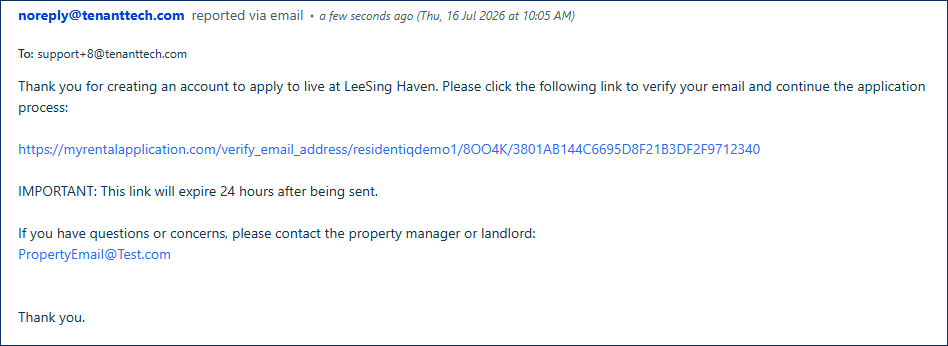
5. ID FraudGuard Link
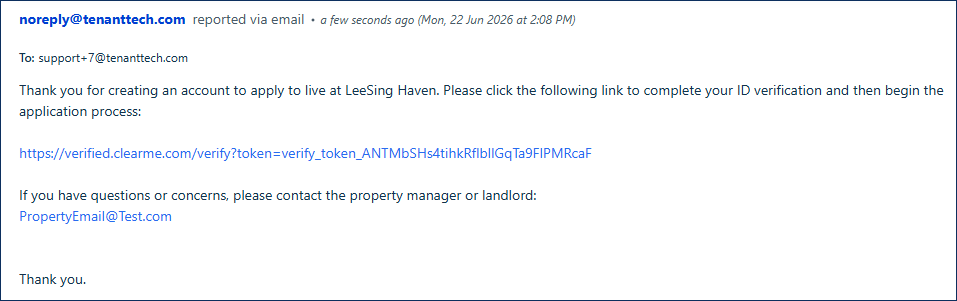
When an applicant logs in to their email and clicks the link to get verified, they will be routed to the ID FraudGuard interface.
6.Completes Identity Verification
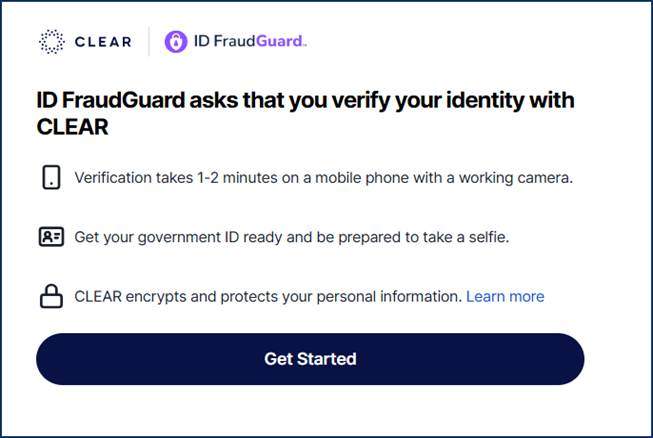
After clicking on their verification link, the applicant is taken to the CLEAR website, where they select Get Started to initiate their identity verification.
*Important Note: Applicants MUST have access to a mobile phone with a working camera to complete their verification.
7. Identity Verification Complete
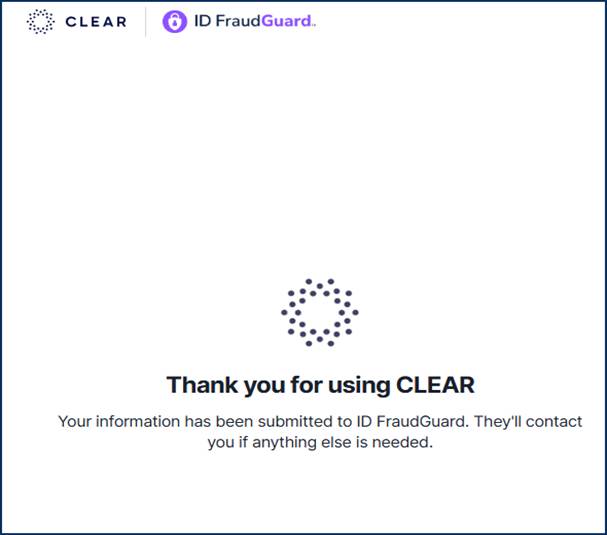
Once the process is completed, a message will be displayed confirming that the applicant’s information was submitted to ID FraudGuard. Simultaneously, CLEAR sends confirmation to TenantTech.
8. Applicant Continues Online Application
If the applicant passes the ID FraudGuard verification, then TenantTech emails the applicant with a link to continue completing their rental application.
If the applicant does not pass their verification, they will not be able to continue their application and are instructed to contact the property for the next steps.
*Important Note: If the applicant meets the property requirements for an Identity Verification Override, then they will be able to continue their application once the override is complete.
On-Demand Requests for ID FraudGuard Verification - Paper Applications
Key Things to Keep in Mind for Paper Applications
- Site teams must initiate the ID Verification from within TenantTech.
- Leasing teams cannot modify or resubmit ID FraudGuard on the applicant’s behalf.
1. Start - Application entered in TenantTech
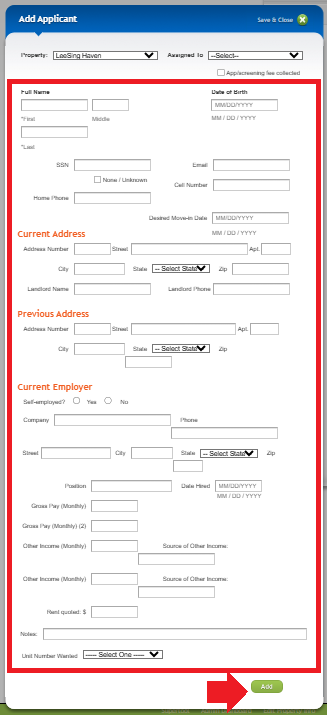
After receiving a completed application, site teams confirm the applicant details, enter the information into TenantTech using the Create New Applicant. Enter Applicant provided details in the Add Applicant page. After all details are entered, select Add.
*Important- All mandatory fields must be entered for the applicant to initiate the ID FraudGuard Verification request.
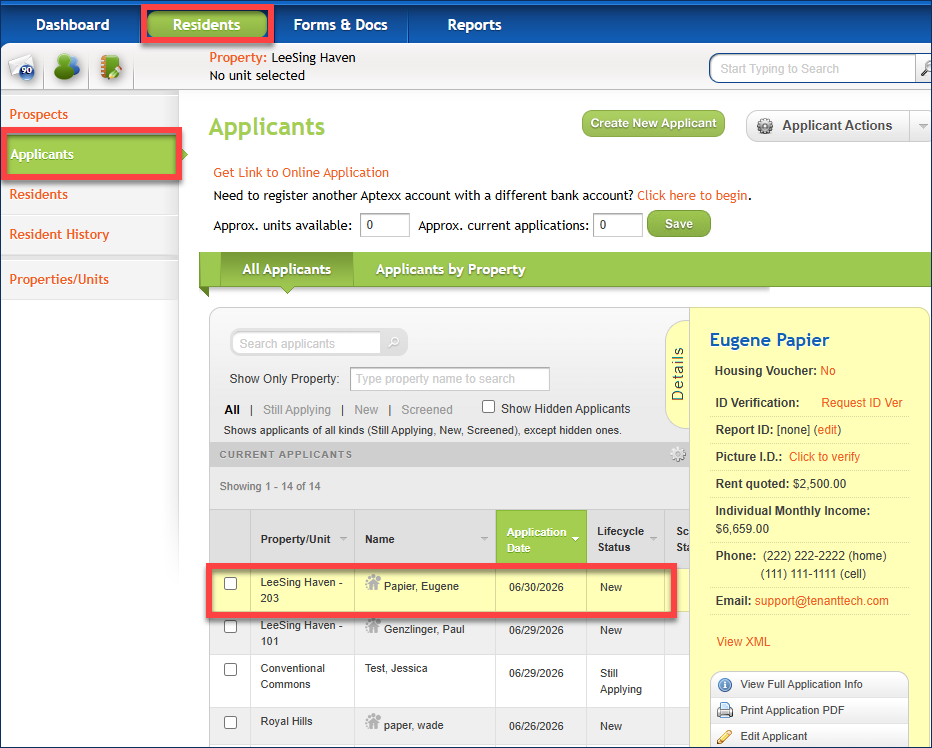
2. Applicant in TenantTech
Select the applicant’s name from the list of applicants.
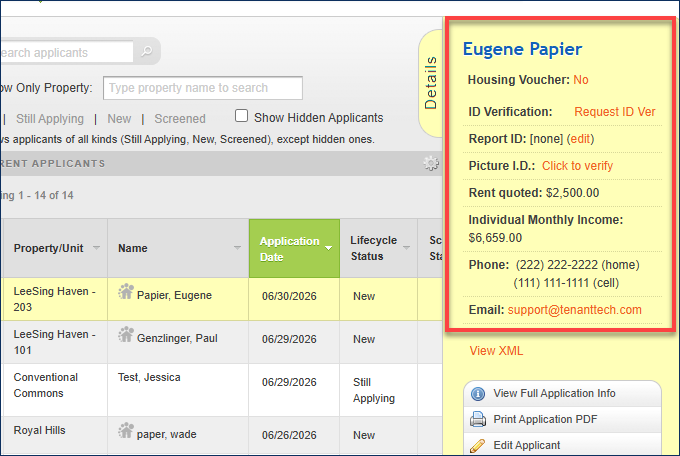
3. Applicant Details Panel
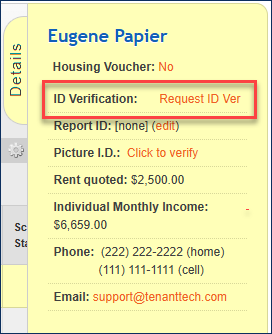
From the Applicant Details Panel, confirm that the applicant information received on the paper application (Applicant Name, Email Address, and Cell Phone Number).
4. Request ID Verification
Once the applicant information is confirmed, click on Request ID Ver.
5. Send ID Verification
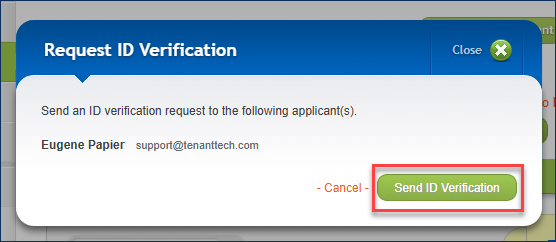
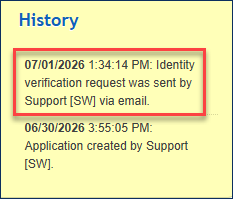
A pop-up window appears, displaying the applicant's name and email address. Click on Send ID Verification. The details of the request will be stored in the Applicant History.
6. ID FraudGuard Link
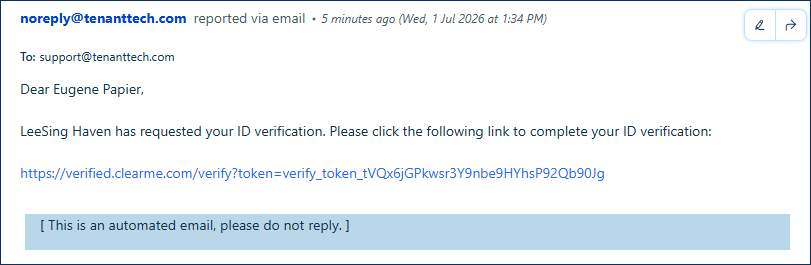
Site teams will need to notify applicants to check their email for the ID verification request. Once the applicant opens the email and clicks the verification link, they will be directed to the ID FraudGuard interface.
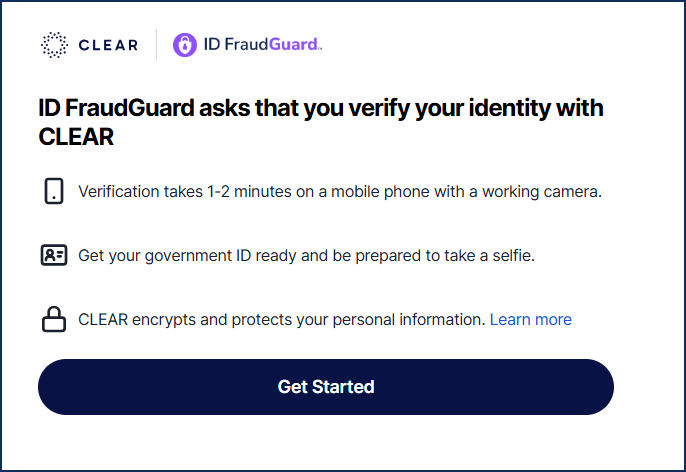
7. Complete Identity Verification
After clicking on their verification link, the applicant is taken to the CLEAR website, where they select Get Started to initiate their identity verification.
*Important Note: Applicants MUST have access to a mobile phone with a working camera to complete their verification.
8. Identity Verification Complete
Once the process is completed, a message will be displayed confirming that the applicant’s information was submitted to ID FraudGuard. Simultaneously, CLEAR sends confirmation to TenantTech.