Applicants may need to log into an existing application if they had to step away before completing the application or if there is information that needs to be corrected.
Use these steps when an applicant has already started an application but cannot sign in because they forgot their password. The applicant will need access to the email address they used to begin the application.
Reset the Application Password
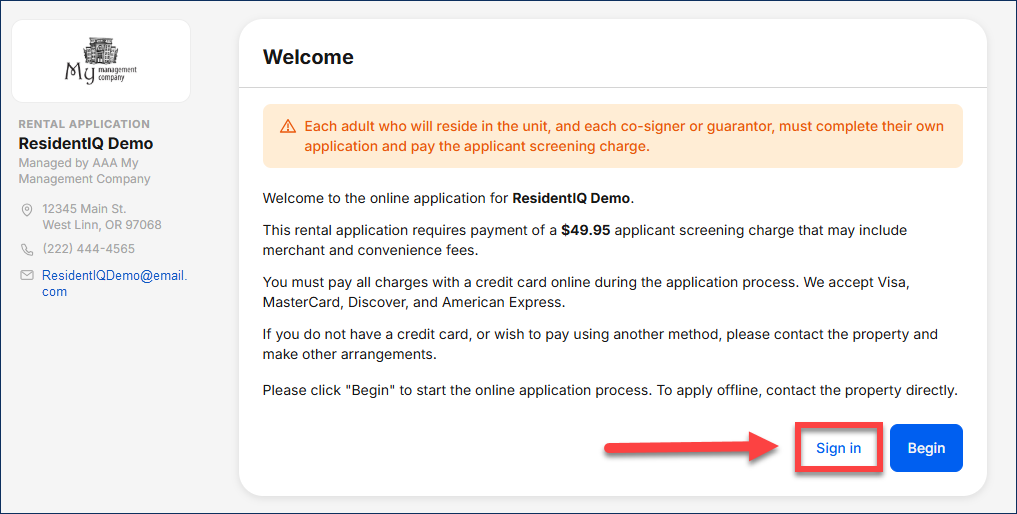
1. Open the application page for the property. The applicant can use the link sent by the property manager or find the application on the property’s website. On the application page, select Sign In.
*Note: Each property has its own application page. Make sure the applicant opens the page for the property where they applied.
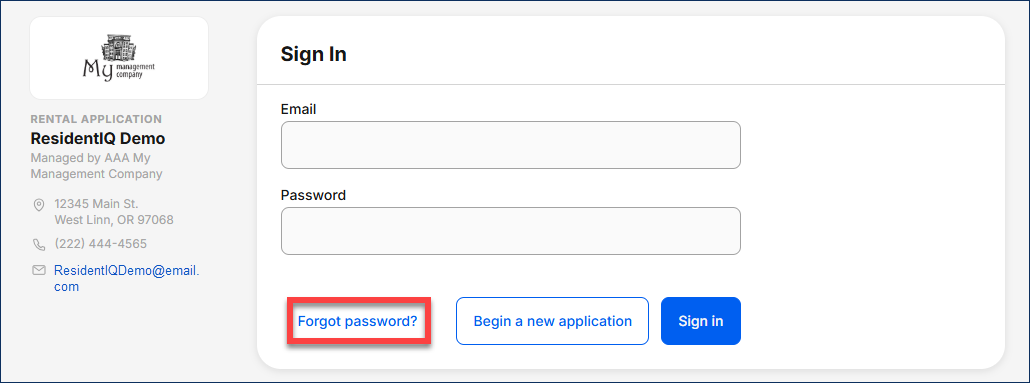
2. Select Forgot Password?
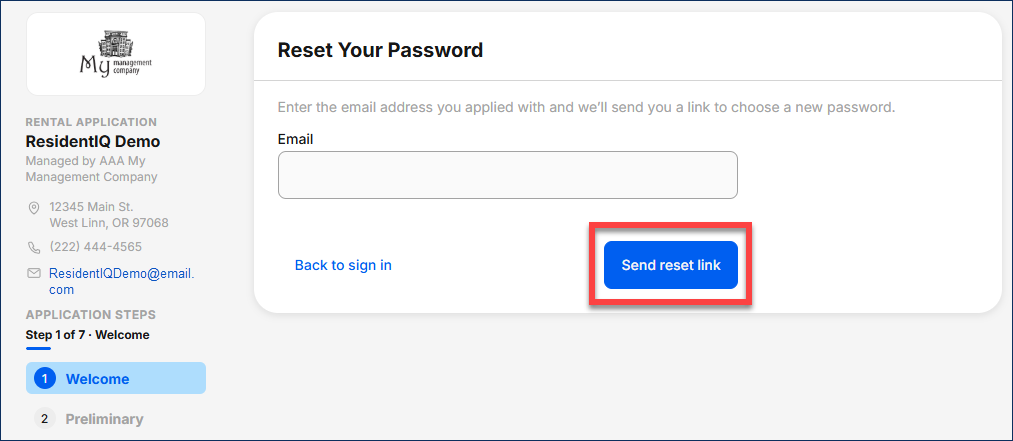
3. Applicants enter the email address used when they started the application. Then select Send Reset Link.
Note: The email address must be an exact match to the email address used when they started their application. If the applicant uses a different email address, TenantTech will not find the application.
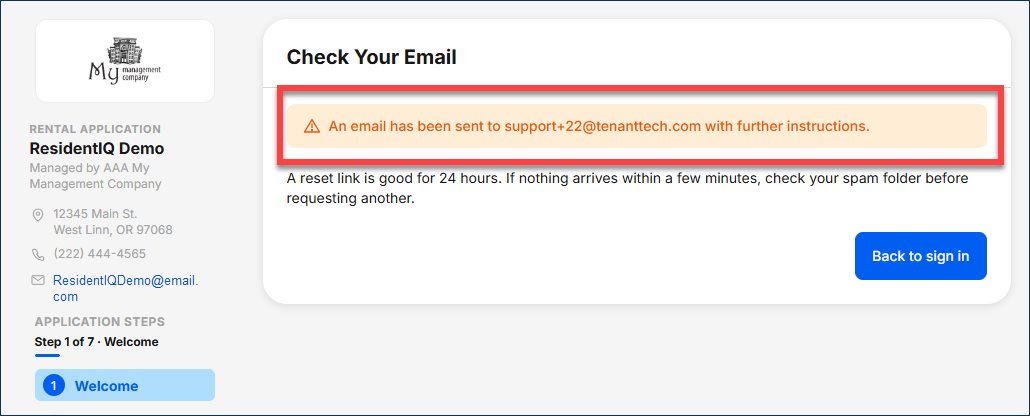
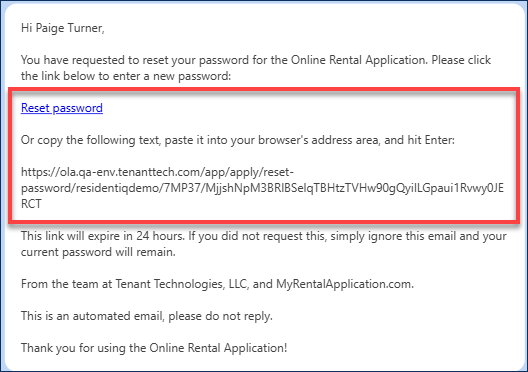
4. Once the information is entered, the applicant will receive the following visual confirmation from the online application site, and the system will generate and send an email to the applicant, allowing them to reset their password.
*Troubleshooting Tip:
If an applicant receives an error message, the applicant should contact the property manager first. The property manager can check whether the unit is still available and whether the application is still available and whether the application is still active. If the application is too old, the applicant may need to start a new one. They should contact TenantTech Support only if the property manager cannot resolve the issue.
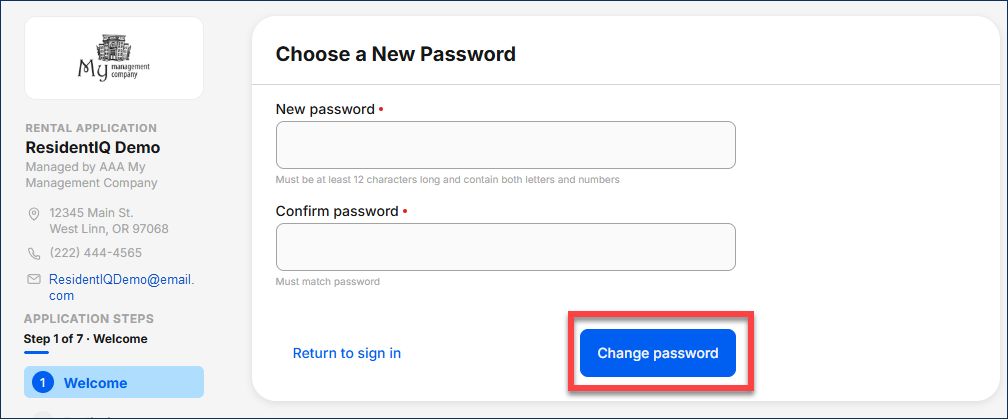
5. Applicants are prompted to enter a new password, then select Change Password. Passwords must be at least 12 characters and include both letters and numbers.
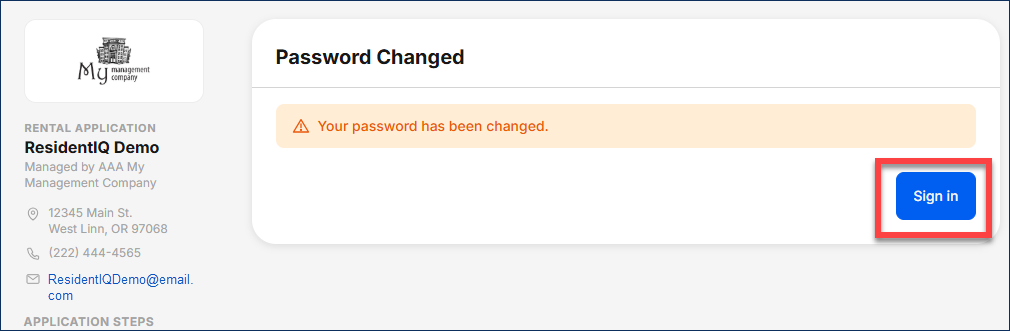
6. A confirmation message appears after the password is reset. They can select Sign In to return to the application sign-in page.