
Tenant Tech now allows site staff to generate, print, and automatically email an Updated Screening Fee Receipt whenever a refund is processed. The receipt breaks down the original payment, the refund issued, and any remaining balance without requiring staff to manually itemize partial refund amounts.
Processing a Refund & Generating a Receipt
- Hover over Residents tab and select, Applicants page.
- Locate and open the applicant whose fee has been settled.
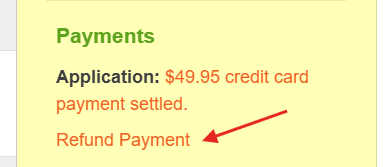
- Open the Payment Information lightbox or click Refund Payment.
- Enter the refund amount:
- Full Refund: Refunds the full eligible application/screening fee.
- Partial Refund: Enter the specific dollar amount to return (no line-item assignment required).
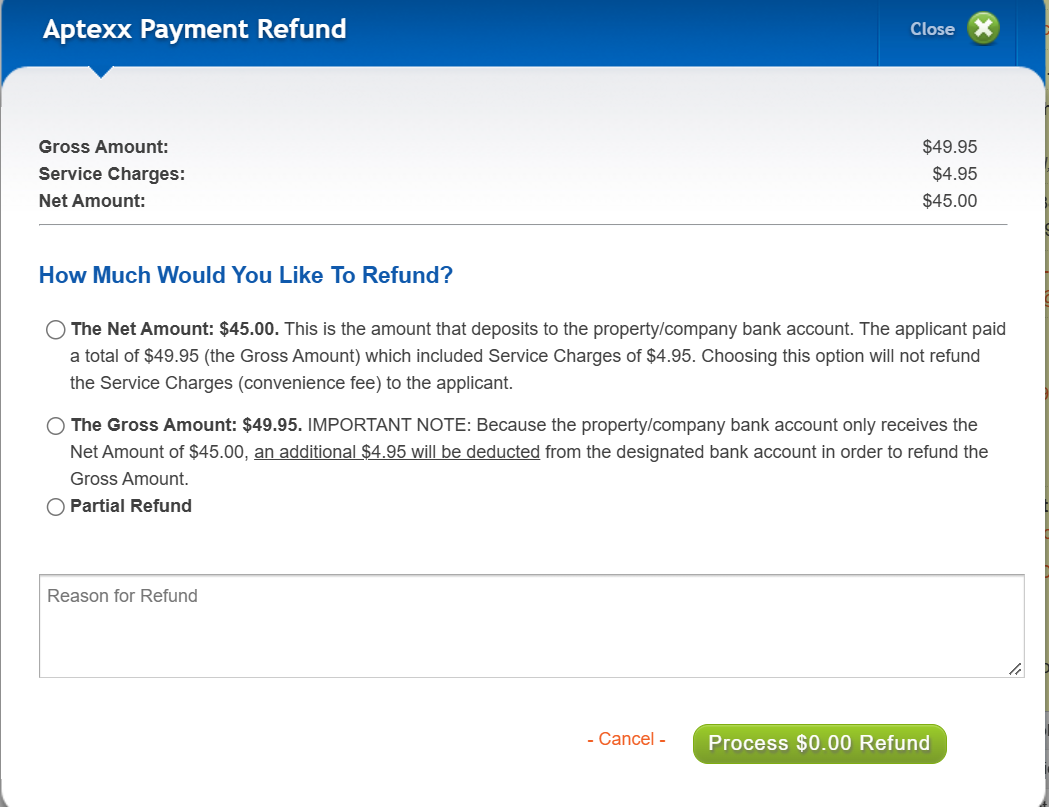
- Enter Reason for the refund
- Select Process to complete the refund
Once you return to the applicant list, you will see the updated activity in the menu panel. Click the Settled Payment text hyperlink to view the updated payment details.
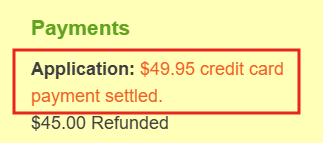
- Click Print Receipt or allow the system to send the automated refund confirmation email to the applicant.
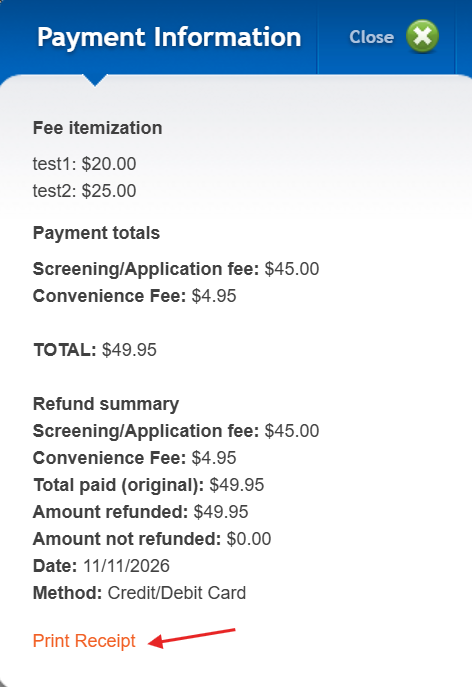
Understanding the Receipt Layout
The updated receipt is divided into clear sections so both site staff and applicants can reconcile the payment at a glance:
View the original payment information, including the transaction date, payment method, and amount charged. You'll also see a summary of any refunds issued, along with any remaining balance that was not refunded.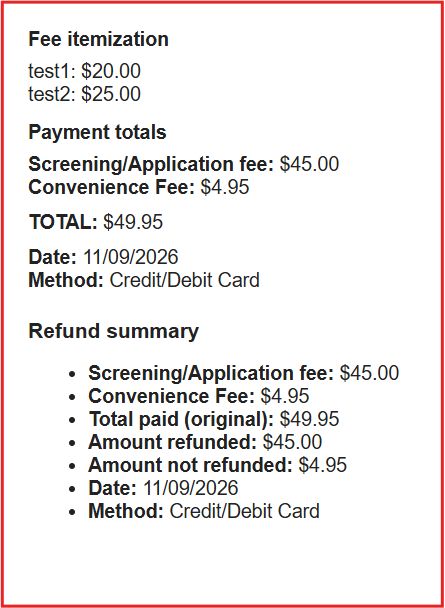
Reminder of Refund Options set at a Company Level:
Gross vs. Net Refunds
- Standard site configurations process refunds as net amounts. The "Gross Amount" refund option is typically restricted to prevent properties from paying third-party processing fees out-of-pocket.