
This article explains how to view and use a screening report in TenantTech during the applicant review process. It walks you through where to find the screening report from the Applicants page and how to open it from an applicant’s details panel.
Use this guide when you need to review an applicant’s screening results, confirm their screening outcome, or update their status accurately in TenantTech. It is intended to help users quickly locate the report, understand what action to take after reviewing it, and ensure screening statuses are kept up to date.
*Note: This feature is ONLY available to properties utilizing a screening company that is integrated with TenantTech. If your property or company does not use an integrated screening provider, the View Screening Report option may not appear.
Steps to View a Screening Report
1. Hover over the Residents tab.
2. Select the Applicants page.
3. From the applicant list, select the applicable applicant or applicant group.
4. In the applicant’s details panel, select View Screening Report.
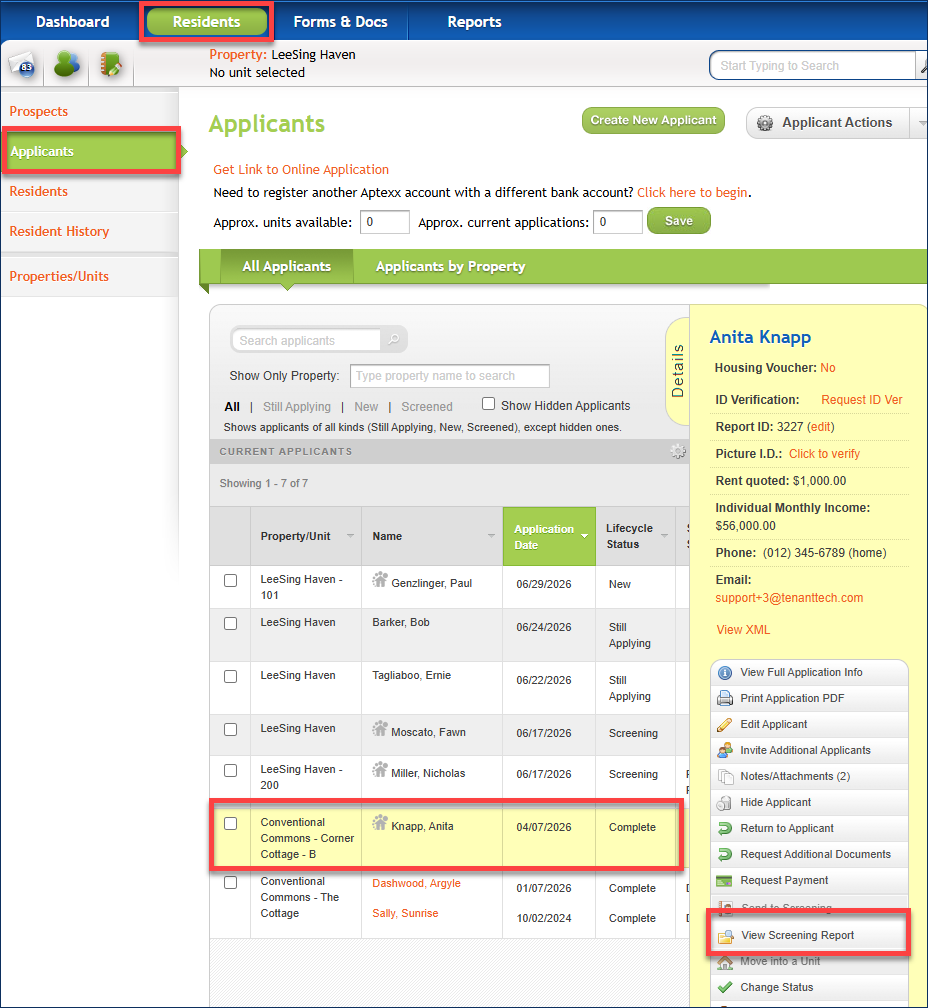
*Note: If you select an applicant group, rather than a single applicant, the Applicant Details Panel displays a group management menu in addition to the standard menu for individual applicants. Properties utilizing the integrated screening service through Western Reporting will see a group menu option to View Group Report. This group menu option is only available for properties utilizing Western Reporting’s applicant screening services.
- For detailed instructions on creating applicant groups, see Linking Applicants - Creating Applicant Groups.

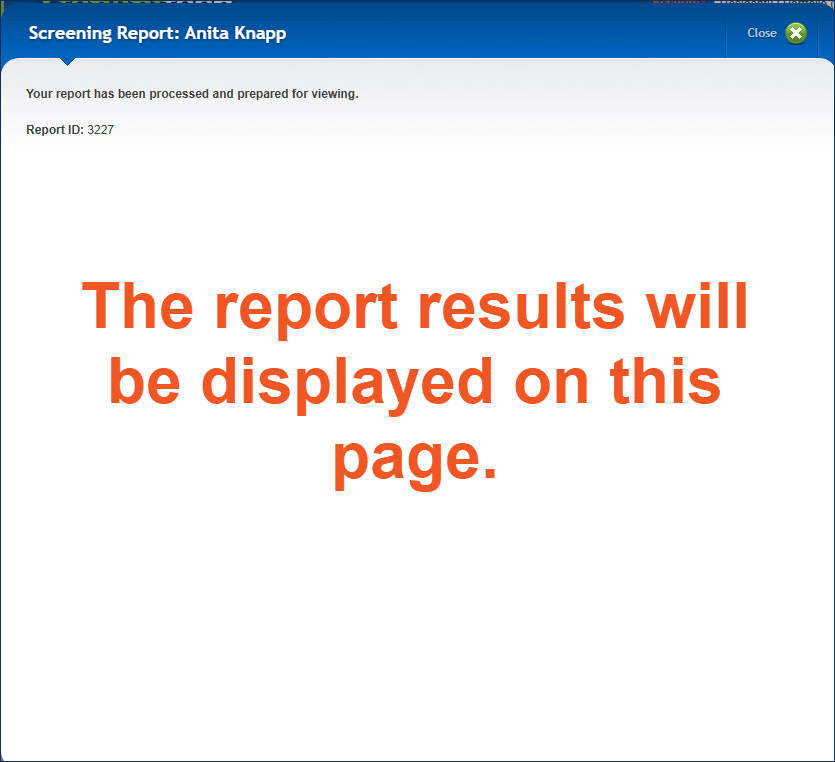
5. A pop-up window will appear with the screening report information.
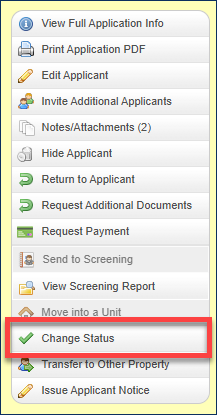
6. Use the Change Status menu option to update the applicant’s screening status based on the screening report.
- For step-by-step instructions, see our Changing an Applicant’s Screening Status article.
Video Resource:
Password: ViewReport123!!