TenantTech now allows management teams to review receipt content provided to an applicant after screening fees are settled in program.
When an application or screening fee is collected, a Screening Fee Receipt section appears in the Application PDF and Applicant Details panel in program.
If applicable, receipts list itemization details for screening charges on the receipts provided to applicants. If your account utilizes itemization within Account/ Property settings, the receipt provides a clear breakdown of your screening costs and payment. For more information on Itemized Screening Charge options review this KnowledgeBase article, ***New*** Setting Up Itemized Screening Fees for Online Applications (OLA) : TenantTech .
What’s New on the Application PDF?
When you generate or download an applicant’s completed Application PDF in Tenant Tech for an application where screening/application fees were collected, a dedicated Screening Fee Receipt section will now appear on the document.
What Appears in the Receipt Section?
- Property & Applicant Identifiers: Clear identification of the property, applicant name, and transaction date.
- If applicable - Itemized Screening Costs: If applicable, an itemized breakdown of what makes up the fee (e.g., Credit Report, Criminal Background Check, Administrative Processing) based on your account's configured fee settings.
- Screening Fee Subtotal: The core screening/application fee cost before any taxes or processing surcharges.
- Separated Convenience Fees & Sales Tax: Third-party payment processing/portal convenience fees and applicable sales tax are broken out separately so applicants see exactly what went toward screening versus transaction processing.
- Total Paid: The final aggregate amount charged and settled.
Step-by-Step: Viewing the Receipt on an Application PDF
- Go to the Applicants Page
- Select the applicant who has submitted payment.
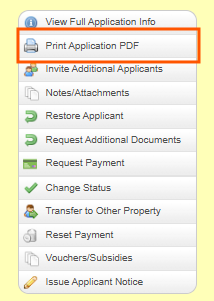
- Click Print Applciation PDF
- Scroll to the receipt section of the generated document:
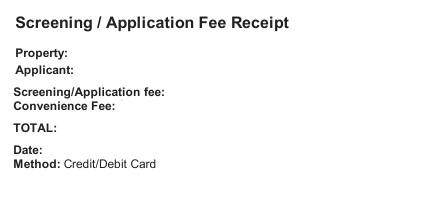
- Verify the Payment Totals section, confirming the screening fee subtotal, convenience fee (if applicable), and final total paid.
- If applicable-review the Fee Itemization table to confirm line items match your property’s fee disclosure.