
Certain states require housing providers to give applicants an itemized breakdown of what makes up their screening and application fees (such as credit reporting costs, background check fees, or administrative processing costs).
To help your property stay compliant, TenantTech/ResidentIQ includes a state specific screening fee itemization tool within your Account settings. For Multiple Property accounts, you will find these settings in your Property settings. If you are unsure what type of account you are working in, please see our article, Do I Have a Single Property or a Multi-Property Account?
Use this guide when your property’s address is in a state that requires a screening/application fee breakdown.
What States Require Screening Fee Itemization?
Itemization settings turn on automatically if your property is in one of these states, which require itemized fees or clear fee receipts:
- California (CA)
- Colorado (CO)
- Connecticut (CT)
- Oregon (OR)
Note: If your property’s physical address is in a state not listed above, you won't see the itemization section in your settings. Your application fee setup works as usual.
Things to Know:
Before modifying your Account Settings or Property Settings, it is important to review the following information.
- User Permissions:
Only users with appropriate permission to Edit Application Fees will have access to the Fee Itemization settings. Users without this permission will see th fee amounts in read-only mode.
- Payment Processor Fees:
Do not include payment processor convenience fees, such as credit card or ACH fees charged through Aptexx. The system calculates and adds these automatically at checkout.
- Itemization applies specifically to fees charged electronically through Online Leasing / Applications (OLA)
Itemization only applies to fees that applicants pay online through their Online Leasing / Applications (OLA). Depending on your state, you may see these fee types:
- Default Screening Charge: This is your main screening fee. It needs to be itemized in all of the states listed above.
- Housing Voucher (HV) Charge: Applies in Colorado only. You only need to itemize it if the fee is more than $0.
- Portable Screening Report (PSR) Charge: Applies in Colorado only. You only need to itemize it if the fee is more than $0.
Note: Fees for affordable housing programs (HUD, HOME, Tax Credit, Rural Dev, and Conventional) are listed on static application forms. Applicants don’t pay them through Online Application checkout, so you don’t need to itemize them online.
Step-by-Step Instructions to Modify Account / Property Settings
Step 1: Navigate to Screening Charges
- Log in to TenantTech.
- Go to Account/Property Settings, Select Application/Screening.
- Scroll down to the Screening Charges section.
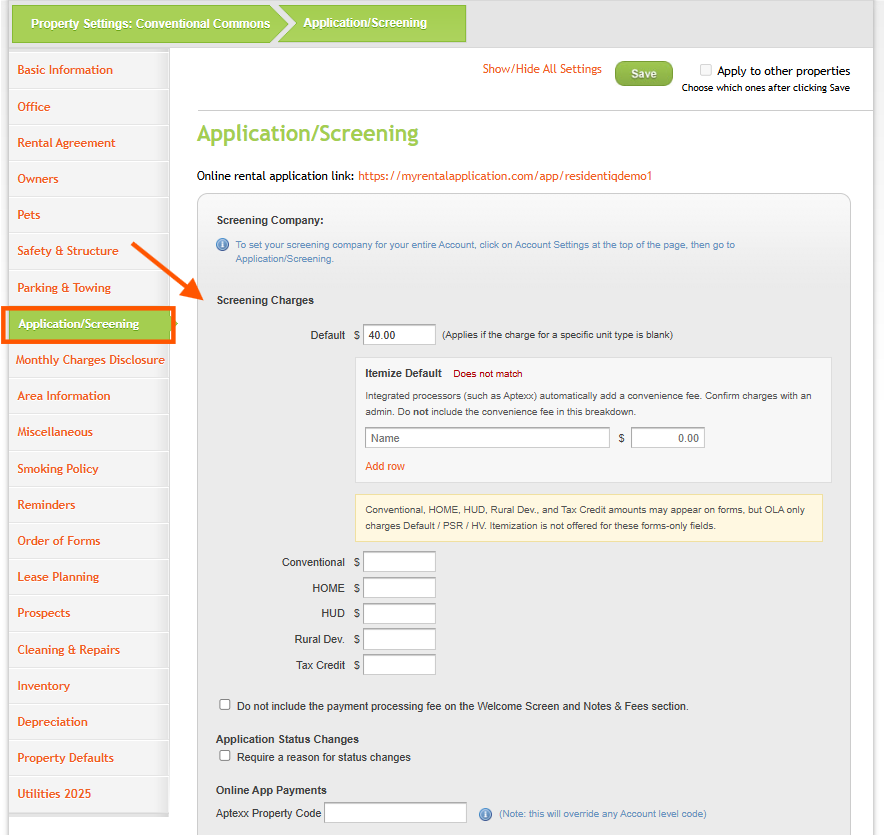
Step 2: Enter Fee Amounts
- Ensure your base fee amount is entered in the primary fee field (e.g., Default Screening Fee: $50.00). If the amount is $0.00, itemization is not required.
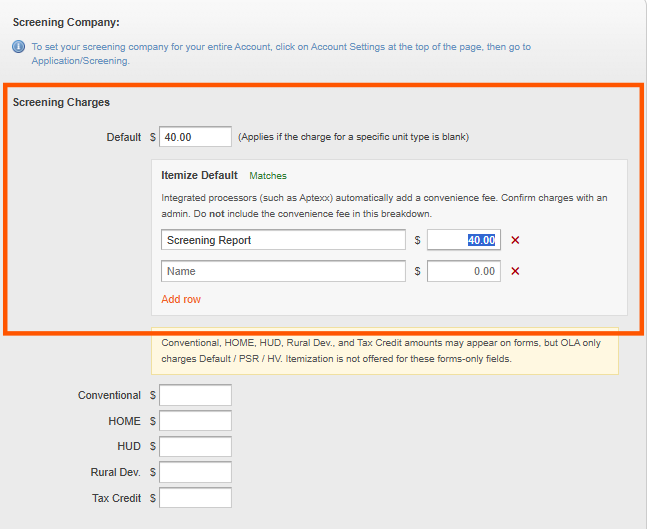
Step 3: Add Line-Item Breakdown
- Under the fee amount, click Add Item (or edit existing line items).
- Enter the Item Name / Description (e.g., Credit Report, Criminal Background Check, Administrative Verification).
- Enter the Cost for each item.
- Continue adding lines until your total equals the base fee amount.
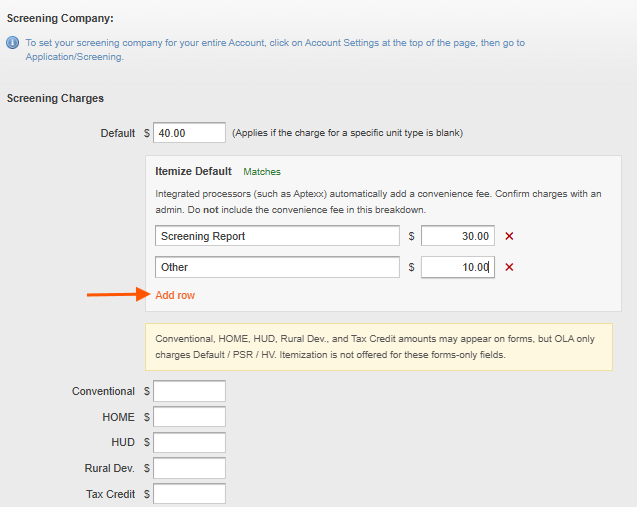
Step 4: Verify the Match Status
- As you enter amounts, the system calculates the line-item subtotal against the total fee:
- Matched: The sum of your line items matches the total fee exactly.
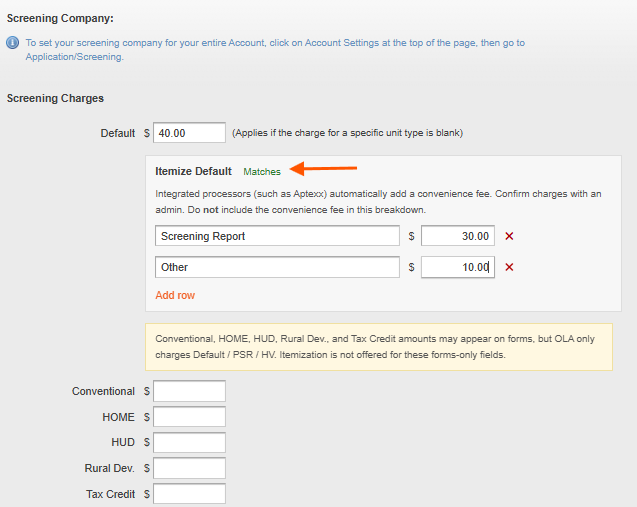
- Unmatched / Incomplete: The sum differs from the total charge, or an item name is missing.
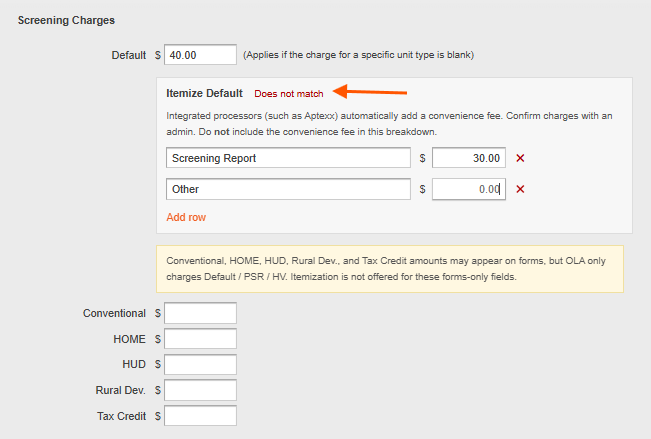
Step 5: Save Settings
- Click Save before leaving the page.
Note: If you need to save your changes before all items match, a prompt will appear asking you to confirm saving an incomplete breakdown. Please ensure you return and balance your items before opening applications to prospective tenants.
Reminder Multiple Property Management & Copying Restrictions: If a property has an incomplete or unbalanced itemization breakdown, the system will prevent copying those screening settings across to other properties until the Screening Fee Itemization is balanced/matches.